Menu du compte de l'utilisateur

  • Log in

Navigation principale

  • Home Page
  • All CMS
  • Tutorials
  • White Paper
Home
Guide CMS

Breadcrumb

  • Home
  • Tutorials
  • Drupal User Guide
  • Chapter 6. Setting Up Content Structure
  • 6.6. Setting Up a Taxonomy

Language selector

  • Français
  • English

Main navigation

  • Home Page
  • All CMS
  • Tutorials
  • White Paper

User login

CAPTCHA
This question is for testing whether or not you are a human visitor and to prevent automated spam submissions.
  • Create new account
  • Reset your password

Book navigation

  • Tutorials
    • Drupal User Guide
      • Preface
      • Chapter 1. Understanding Drupal
      • Chapter 2. Planning Your Site
      • Chapter 3. Installation
      • Chapter 4. Basic Site Configuration
      • Chapter 5. Basic Page Management
      • Chapter 6. Setting Up Content Structure
        • 6.1. Adding a Content Type
        • 6.2. Deleting a Content Type
        • 6.3. Adding Basic Fields to a Content Type
        • 6.4. Concept: Reference Fields
        • 6.5. Concept: Taxonomy
        • 6.6. Setting Up a Taxonomy
        • 6.7. Adding a Reference Field
        • 6.8. Concept: Forms and Widgets
        • 6.9. Changing Content Entry Forms
        • 6.10. Concept: View Modes and Formatters
        • 6.11. Changing Content Display
        • 6.12. Concept: Image Styles
        • 6.13. Setting Up an Image Style
        • 6.14. Concept: Responsive Image Styles
        • 6.15. Concept: Text Formats and Editors
        • 6.16. Configuring Text Formats and Editors
      • Chapter 7. Managing User Accounts
      • Chapter 8. Blocks
      • Chapter 9. Creating Listings with Views
      • Chapter 10. Making Your Site Multilingual
      • Chapter 11. Extending and Customizing Your Site

Guy Vigneault

6.6. Setting Up a Taxonomy

By Guy Vigneault | 12:27 AM EST, Mon December 15, 2025

Goal

Create an Ingredients vocabulary and add it to the Recipe content type as a field that can contain an unlimited number of values and that allows adding new terms to the vocabulary.

Prerequisite knowledge

  • Section 2.3, “Concept: Content Entities and Fields”
  • Section 6.5, “Concept: Taxonomy”
  • Section 6.3, “Adding Basic Fields to a Content Type”

Site prerequisites

The Recipe content type must exist. See Section 6.1, “Adding a Content Type”.

Steps

  1. In the Manage administrative menu, navigate to Structure > Taxonomy (admin/structure/taxonomy). You will see the Tags vocabulary that was created with the core Standard installation profile. (Note that the name and description of this vocabulary are shown in English on this page; see Section 2.7, “Concept: User Interface, Configuration, and Content translation” for an explanation.)
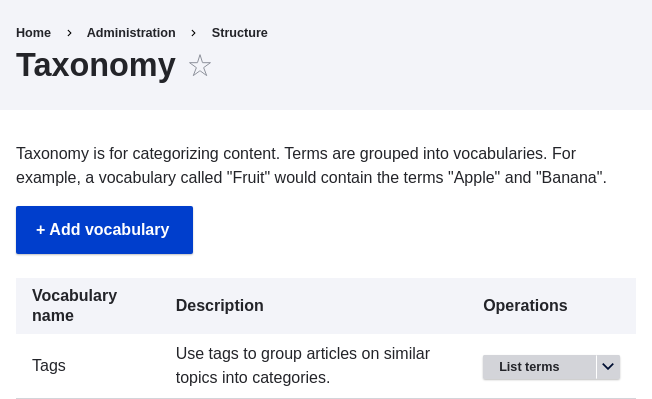
    taxonomy list page

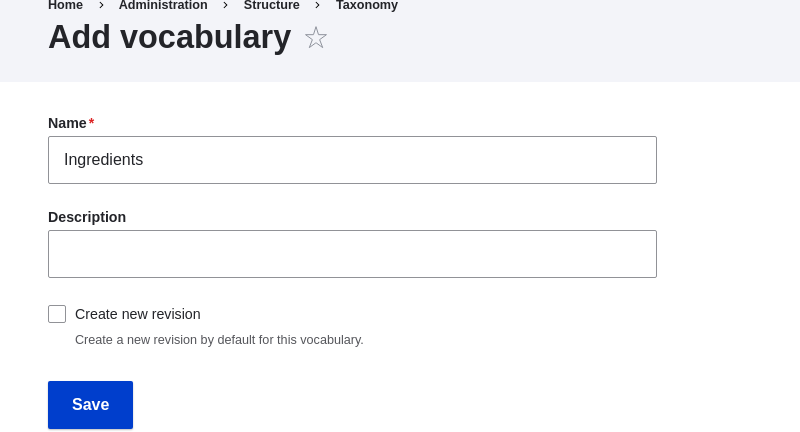
  2. Click Add vocabulary, and fill in the values below.

    Field nameExplanationExample value
    NameThe name of the vocabularyIngredients
    DescriptionA brief note about the vocabulary(Leave blank)

    taxonomy add Ingredients

  3. Click Save. You will be taken to the Ingredients page, which shows a list of all the terms in this vocabulary.
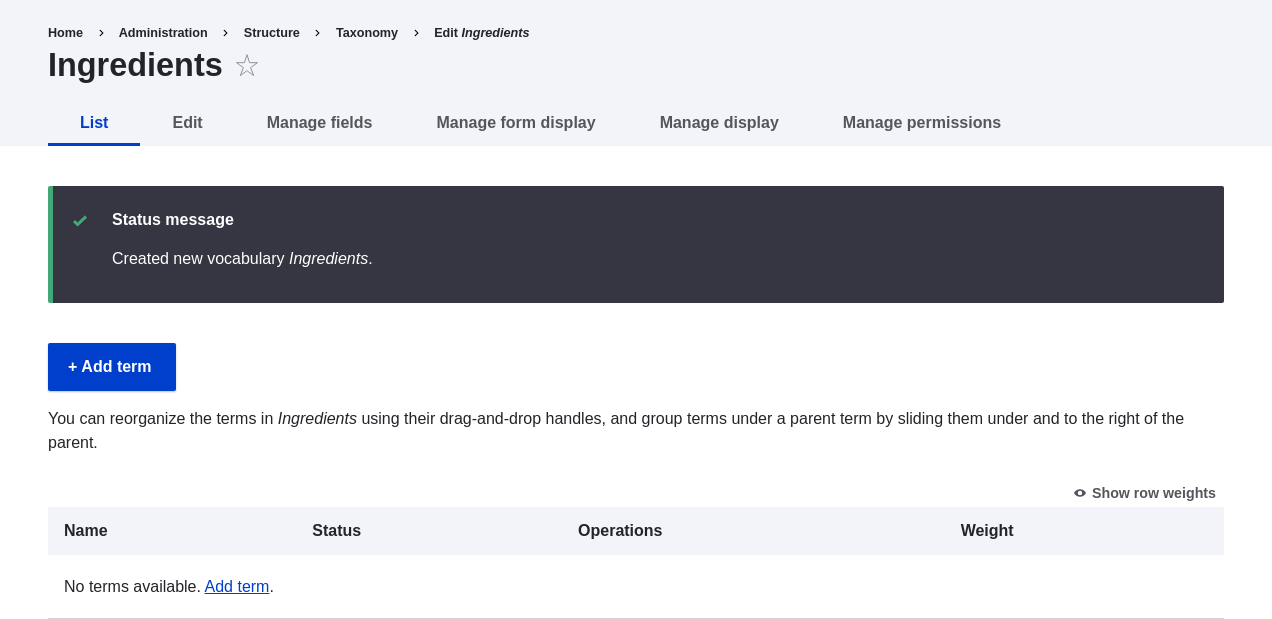
    Ingredients taxonomy term listing

  4. Click Add term. Enter "Butter" in the Name field. Click Save.
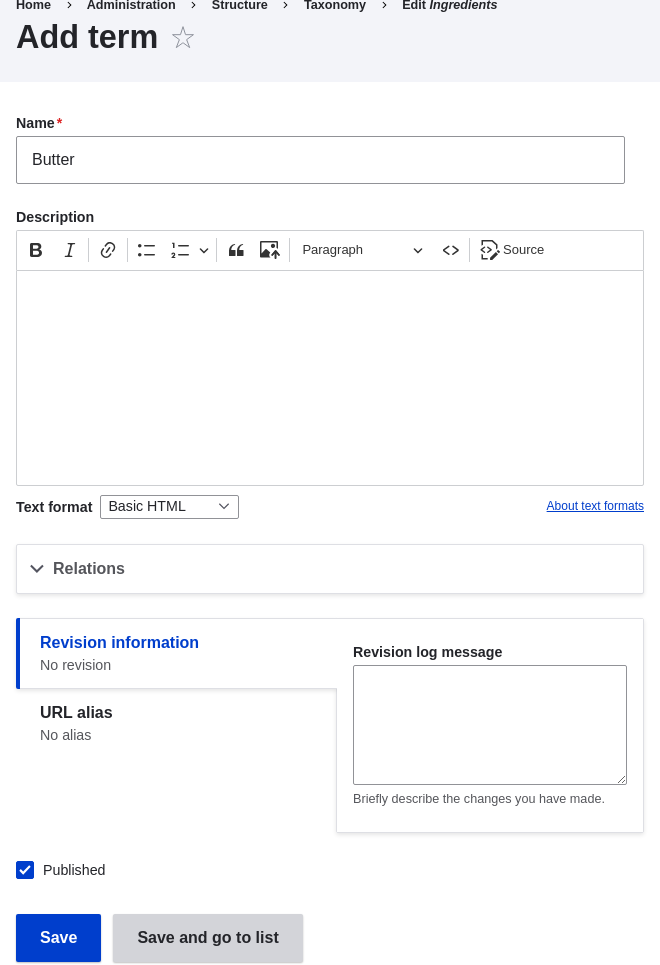
    Add term page

  5. You will receive a confirmation about the term you created. Add more terms. For example, "Eggs" and "Milk".
  6. In the Manage administrative menu, navigate to Structure > Content Types (admin/structure/types). Click Manage fields for your Recipe content type.
  7. Click Create a new field. The Add field page appears. Choose the Reference field type from the Choose a field type options. Click Continue. The Add field page appears with a form to configure the field.
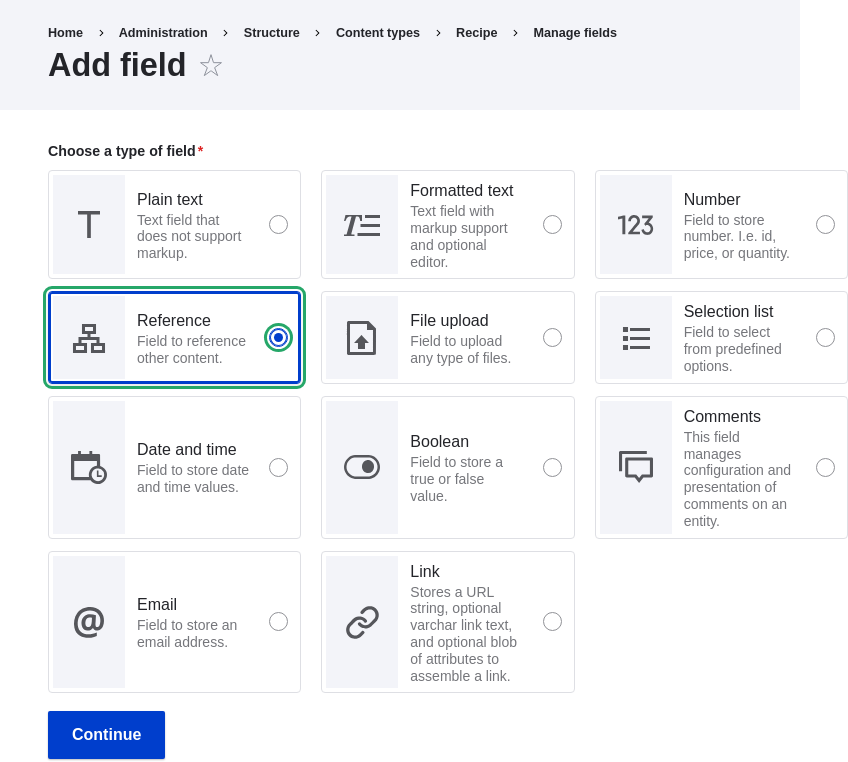
    Add Ingredients field to Content type Recipe

  8. Enter values from the table below. Click Continue.

    Field nameExplanationValue
    LabelThe title to give the fieldIngredients
    Choose an option below:Type of content to referenceTaxonomy term

    Settings for Ingredients field

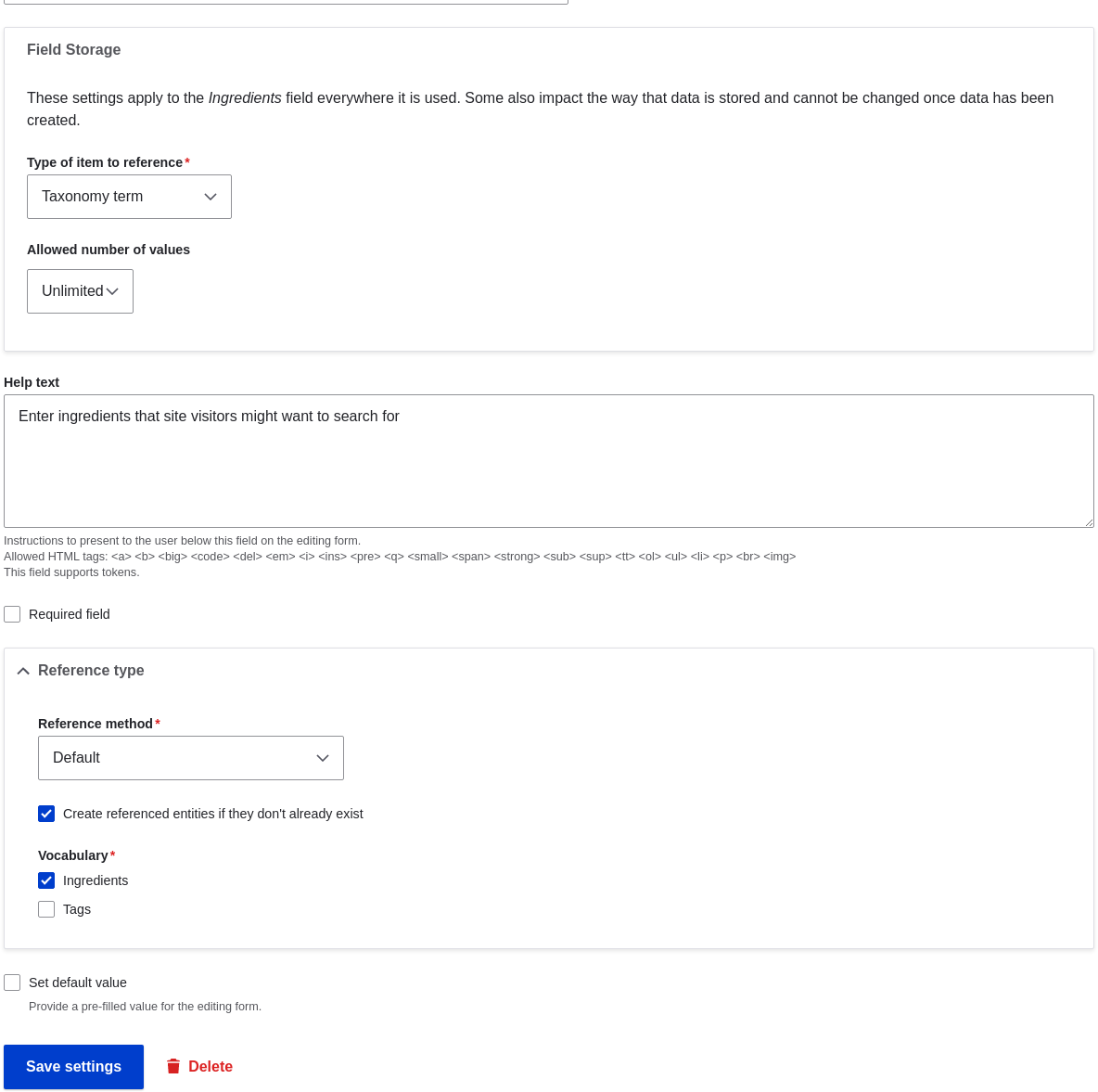
  9. On the following configuration screen, enter the values from the table below. Click Save settings.

    Field nameExplanationValue
    Help textHelp shown to users creating contentEnter ingredients that site visitors might want to search for
    Type of item to referenceThe type of entity that is referenced by the fieldTaxonomy term
    Allowed number of valuesThe number of values a user can enterUnlimited
    Reference type > Reference methodSelect the method used to choose allowed valuesDefault
    Reference type > VocabularySelect the vocabulary to choose allowed values fromIngredients
    Reference type > Create referenced entities if they don’t already existWhether new ingredient terms can be created from the content editing formChecked

    reference type field settings

  10. Click Save settings. You will be taken back to the Manage Fields page. A message will be displayed saying that the configuration for Ingredients is complete.
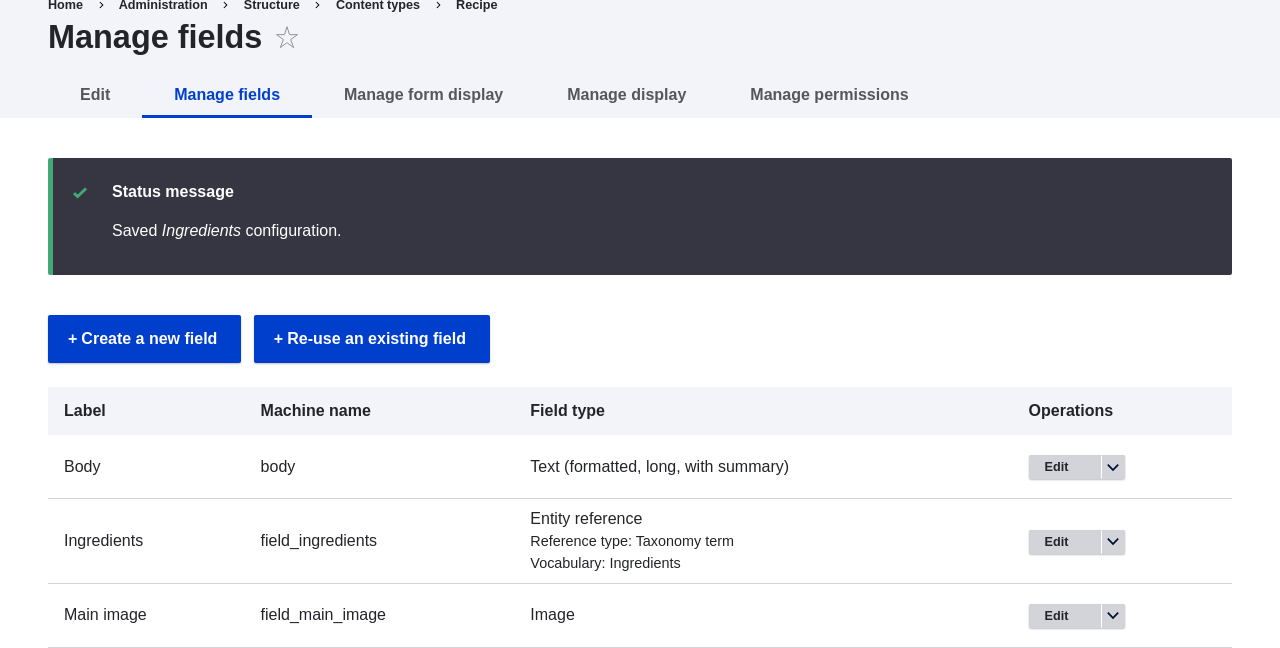

    Manage fields page for Recipe content type

Videos

Setting up a Taxonomy

Attributions

Written and edited by Bob Snodgrass, and Jojy Alphonso at Red Crackle.


Book traversal links for Tutorials

  • ‹ 6.5. Concept: Taxonomy
  • Up
  • 6.7. Adding a Reference Field ›
CMS


All CMS


Tuto


Tutorials


White Paper


White Paper

Powered by Drupal

Privacy Policy

Privacy Policy


Recent content

  • 11.4. Finding Themes
    2 days 10 hours ago
  • 11.3. Downloading and Installing a Module from Drupal.org
    2 days 10 hours ago
  • 11.2. Enabling and Disabling Maintenance Mode
    2 days 10 hours ago
  • 11.1. Finding Modules
    2 days 10 hours ago
  • Chapter 11. Extending and Customizing Your Site
    2 days 10 hours ago

Copyright

Creative Commons

Sauf mention contraire, Guide CMS © 2025 par Guy Vigneault est sous licence Creative Commons Attribution - Utilisation non commerciale - Partage dans les mêmes conditions 4.0 International


Creative Commons

Unless otherwise stated, Guide CMS © 2025 by Guy Vigneault is licensed under Creative Commons Attribution-NonCommercial-ShareAlike 4.0 International Public License

eGV Web