Menu du compte de l'utilisateur

  • Log in

Navigation principale

  • Home Page
  • All CMS
  • Tutorials
  • White Paper
Home
Guide CMS

Breadcrumb

  • Home
  • Tutorials
  • Drupal User Guide
  • Chapter 11. Extending and Customizing Your Site
  • 11.3. Downloading and Installing a Module from Drupal.org

Language selector

  • Français
  • English

Main navigation

  • Home Page
  • All CMS
  • Tutorials
  • White Paper

User login

CAPTCHA
This question is for testing whether or not you are a human visitor and to prevent automated spam submissions.
  • Create new account
  • Reset your password

Book navigation

  • Tutorials
    • Drupal User Guide
      • Preface
      • Chapter 1. Understanding Drupal
      • Chapter 2. Planning Your Site
      • Chapter 3. Installation
      • Chapter 4. Basic Site Configuration
      • Chapter 5. Basic Page Management
      • Chapter 6. Setting Up Content Structure
      • Chapter 7. Managing User Accounts
      • Chapter 8. Blocks
      • Chapter 9. Creating Listings with Views
      • Chapter 10. Making Your Site Multilingual
      • Chapter 11. Extending and Customizing Your Site
        • 11.1. Finding Modules
        • 11.2. Enabling and Disabling Maintenance Mode
        • 11.3. Downloading and Installing a Module from Drupal.org
        • 11.4. Finding Themes

Guy Vigneault

11.3. Downloading and Installing a Module from Drupal.org

By Guy Vigneault | 1:26 AM EDT, Wed October 14, 2026

Goal

Download and install the contributed Admin Toolbar module, which allows you to easily browse through the administration section of the website.

Prerequisite knowledge

  • Section 1.2, “Concept: Modules”
  • Section 11.1, “Finding Modules”
  • Section 3.3, “Concept: Additional Tools”

Site prerequisites

Composer must be installed to download modules. If you want to use Drush, Drush must be installed. See Section 3.3, “Concept: Additional Tools”.

Steps

To install a contributed module, first download the module with Composer. Then install it using either the administrative interface or Drush. If you are installing a custom module rather than a contributed module that is not available via Composer, skip the steps for downloading the module, and refer to Section 11.6, “Manually Installing Module or Theme Files”. Then return here and follow the steps for installing the module using either the administrative interface or Drush.

Download the contributed module with Composer

  1. On the Admin toolbar project page on drupal.org (https://www.drupal.org/project/admin_toolbar), scroll to the Releases section at the bottom of the page.
  2. Copy the provided Composer command for the version of the module you want to install.
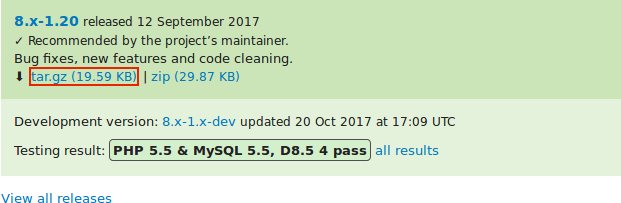
    Finding a module’s composer install command

  3. Alternatively, type the following command (substituting the short name of the module and desired version for admin_toolbar:^3.5):

    composer require 'drupal/admin_toolbar:^3.5'
  4. At the command line, change to the root directory of your project. Paste the Composer command and execute it.
  5. You should see a message about the module being successfully downloaded.

Install the module using the administrative interface

  1. In the Manage administrative menu, navigate to Extend (admin/modules). The Extend page appears.
  2. Locate the Admin toolbar module and check it.
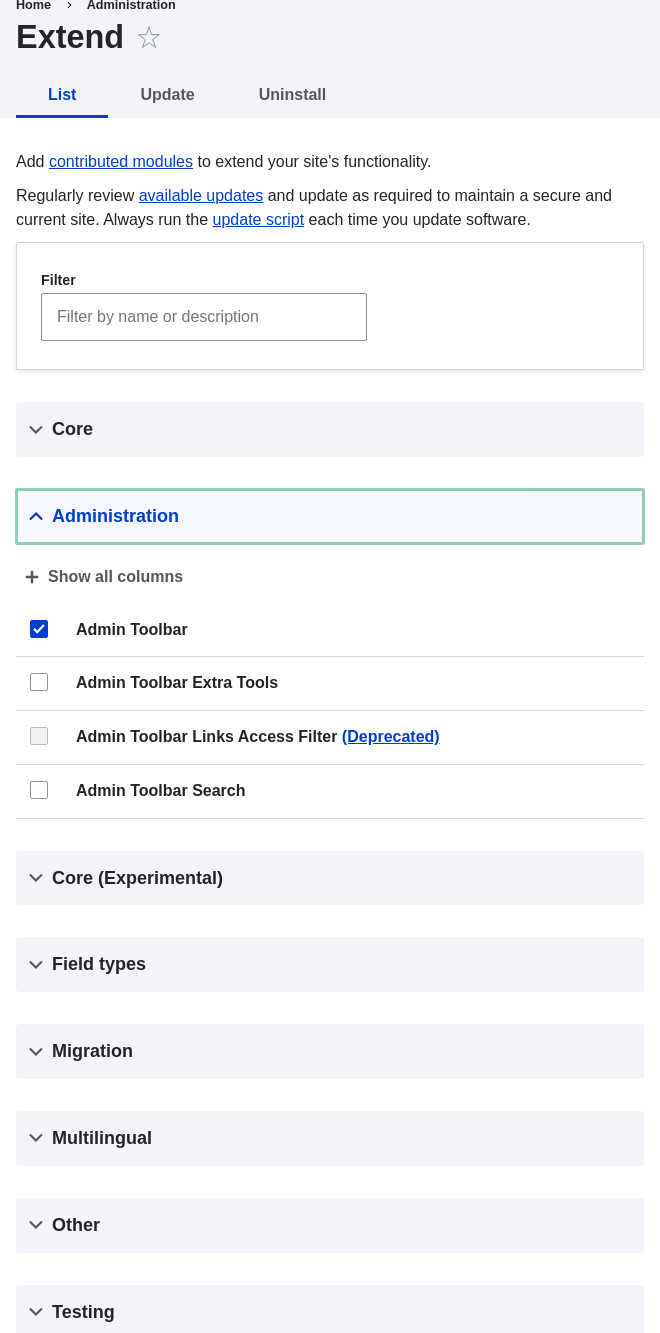
    Installing Admin Toolbar module

  3. Click Install to turn on the new module.

Install the module using Drush

  1. Run the following Drush command, giving the project name (for example, admin_toolbar) as a parameter:

    drush pm:enable admin_toolbar
  2. Follow the instructions on the screen.

Expand your understanding

  • Verify that the contributed Admin Toolbar module is working by browsing through the menu in the administration section.
  • Install and configure the contributed Pathauto module so that content pages in your site get nice URLs by default. See Section 5.1, “Concept: Paths, Aliases, and URLs” for more on URLs.
  • If you do not see the effect of these changes in your site, you might need to clear the cache. See Section 12.2, “Clearing the Cache”.

Videos

Downloading and Installing a Module from Drupal.org

Additional resources

  • Drupal.org community documentation page "Installing Drupal modules"
  • "Download and Extend" page on Drupal.org
  • Admin Toolbar module on Drupal.org

Attributions

Written and edited by Boris Doesborg, Joe Shindelar at Drupalize.Me, and Jennifer Hodgdon.

 

Book traversal links for Tutorials

  • ‹ 11.2. Enabling and Disabling Maintenance Mode
  • Up
  • 11.4. Finding Themes ›
CMS


All CMS


Tuto


Tutorials


White Paper


White Paper

Powered by Drupal

Privacy Policy

Privacy Policy


Recent content

  • 11.4. Finding Themes
    19 hours 47 minutes ago
  • 11.3. Downloading and Installing a Module from Drupal.org
    19 hours 51 minutes ago
  • 11.2. Enabling and Disabling Maintenance Mode
    19 hours 57 minutes ago
  • 11.1. Finding Modules
    20 hours 2 minutes ago
  • Chapter 11. Extending and Customizing Your Site
    20 hours 6 minutes ago

Copyright

Creative Commons

Sauf mention contraire, Guide CMS © 2025 par Guy Vigneault est sous licence Creative Commons Attribution - Utilisation non commerciale - Partage dans les mêmes conditions 4.0 International


Creative Commons

Unless otherwise stated, Guide CMS © 2025 by Guy Vigneault is licensed under Creative Commons Attribution-NonCommercial-ShareAlike 4.0 International Public License

eGV Web