
Goal
Put your site in maintenance mode to allow users with the right permissions to use the site while users without this permission are presented with a message that the site is under maintenance.
Prerequisite knowledge
Section 13.3, “Concept: Security and Regular Updates”
Site prerequisites
If you want to use Drush to enable or disable maintenance mode, Drush must be installed. See Section 3.3, “Concept: Additional Tools”.
Steps
You can use the administrative interface or Drush to enable or disable maintenance mode.
Enabling maintenance mode using the administrative interface
- In the Manage administrative menu, navigate to Configuration > Development > Maintenance mode (admin/config/development/maintenance). The Maintenance mode page appears.
Fill in the fields as shown below.
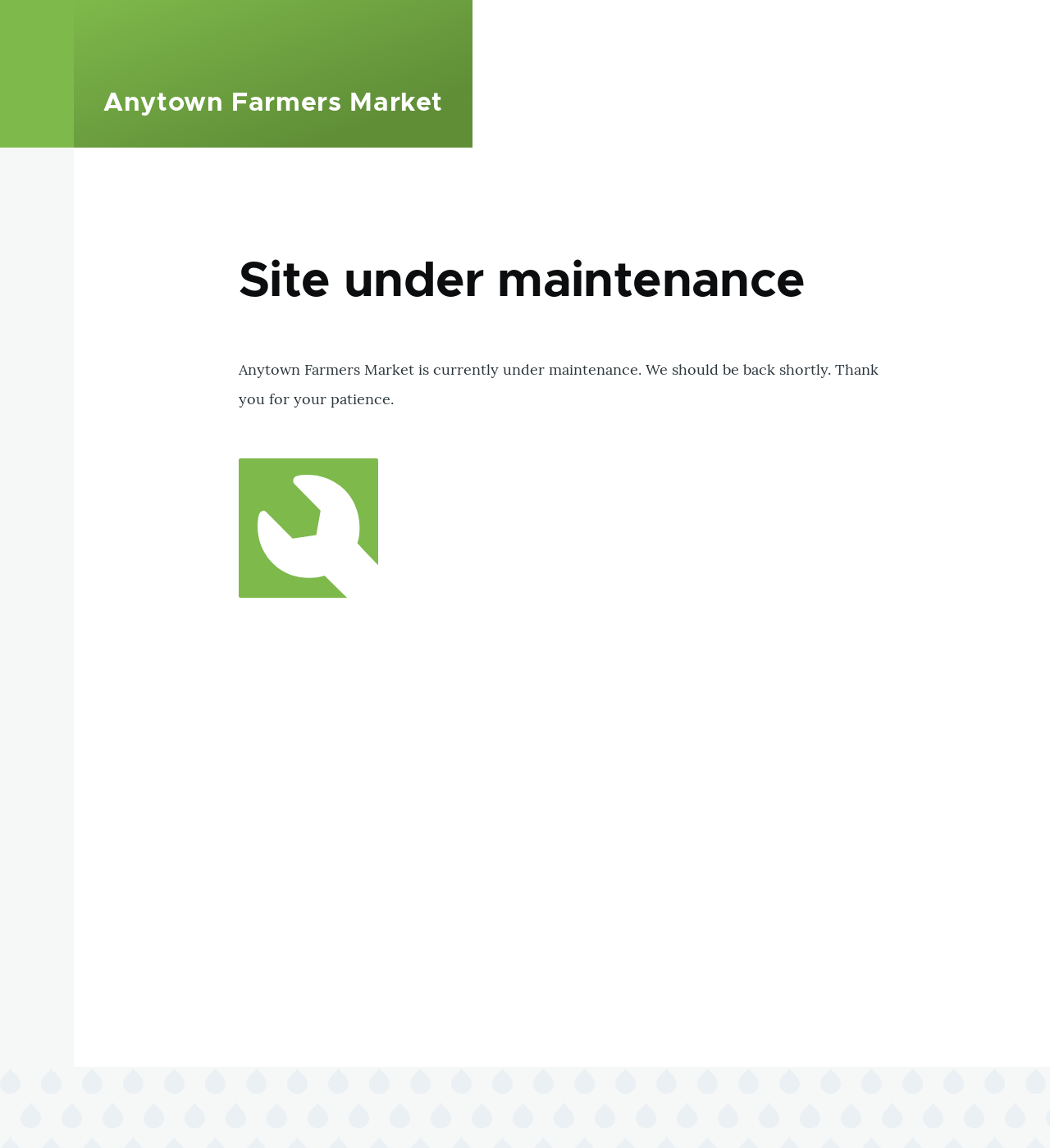
Field name Explanation Value Put site into maintenance mode Enable the maintenance mode Checked Message to display when in maintenance mode The information that is shown to website visitors when the mode is enabled. Variables such as @site can be used in the message @site is currently under maintenance but should be back shortly. Thank you for your patience. - Click Save configuration.
Verify that the site is in maintenance mode by accessing it from another browser where you aren’t logged in. If you are not able to verify, try clearing the cache. See Section 12.2, “Clearing the Cache”.
Disabling maintenance mode using the administrative interface
- In the Manage administrative menu, navigate to Configuration > Development > Maintenance mode (admin/config/development/maintenance). The Maintenance mode page appears.
Fill in the fields as shown below.
Field name Explanation Value Put site into maintenance mode Disable the maintenance mode Unchecked Message to display when in maintenance mode No message required while disabling. You can leave the field blank. - Click Save configuration.
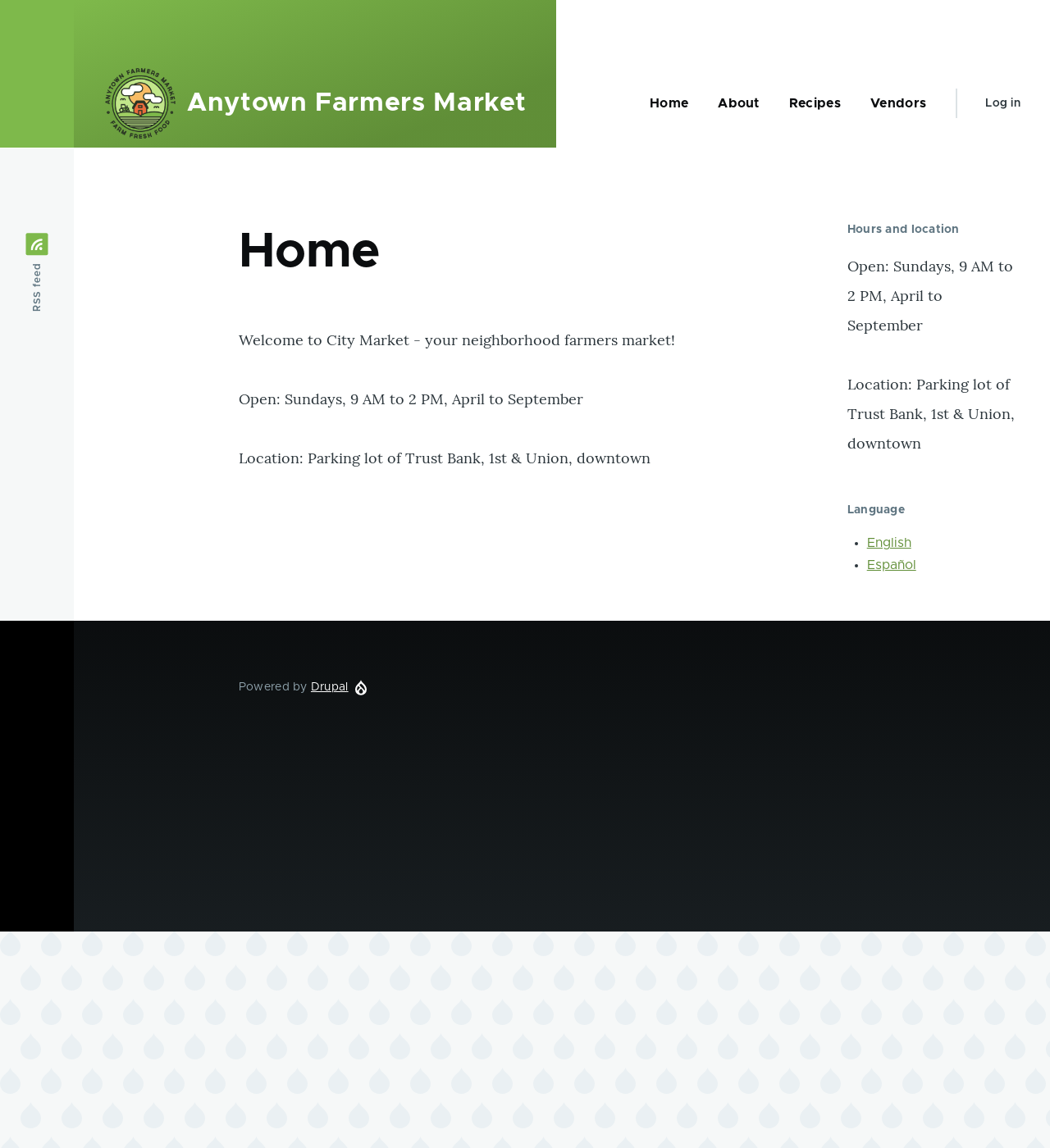
Verify that the site is no longer in maintenance mode by accessing it from another browser where you aren’t logged in. If you are not able to verify, try clearing the cache. See Section 12.2, “Clearing the Cache”.
Enabling or disabling maintenance mode using Drush
- Follow the user interface steps above to edit the site maintenance message, if desired.
Run the following Drush commands to enable maintenance mode and clear the cache:
drush config:set system.maintenance message "Optional message" -y
drush state:set system.maintenance_mode 1 --input-format=integer
drush cache:rebuild
Run the following Drush commands to disable maintenance mode and clear the cache:
drush state:set system.maintenance_mode 0 --input-format=integer
drush cache:rebuild
- After running either set of commands, verify that your site is either in or out of maintenance mode by visiting the site in a browser where you are not logged in.
Expand your understanding
- Section 13.5, “Updating the Core Software”
- Section 13.7, “Updating a Theme”
- Section 13.6, “Updating a Module”
Videos
Enabling and Disabling Maintenance Mode
Attributions
Written and edited by Boris Doesborg, Jojy Alphonso at Red Crackle, and Jennifer Hodgdon.