
Goal
Find and evaluate modules on Drupal.org.
Prerequisite knowledge
- Section 1.1, “Concept: Drupal as a Content Management System”
- Section 1.2, “Concept: Modules”
Steps
- Go to Drupal.org, and navigate to Download & Extend > Modules (https://www.drupal.org/project/project_module).
Filter your search using the categories on the module search page. Fill in the fields as shown below.
Field name Explanation Example value Maintenance status How actively should the module be maintained? Actively maintained Development status What kind of development should the module undergo? Any Module categories The module’s topic area. Administration Core compatibility The version of the core software the module is compatible with. 9.x Status Project status: Sandbox projects are experimental projects. Full projects have already gone through an approval process, but they can still be in development. Full projects Stability Whether or not the project maintainer has created a production-ready version. Has a supported stable release Security advisory coverage Whether or not the project maintainer has agreed to follow Drupal Security Team procedures. Has security advisory coverage Search modules Search for Admin Toolbar, a module that will be covered in detail later. Alternatively, you can also leave the field blank if you are not sure which module to search for. Admin Toolbar Sort by Order your search results by criteria like Most installed (popular modules that many sites use) or Last release (date of latest version released). Most installed 
Click Search. Search results will appear.
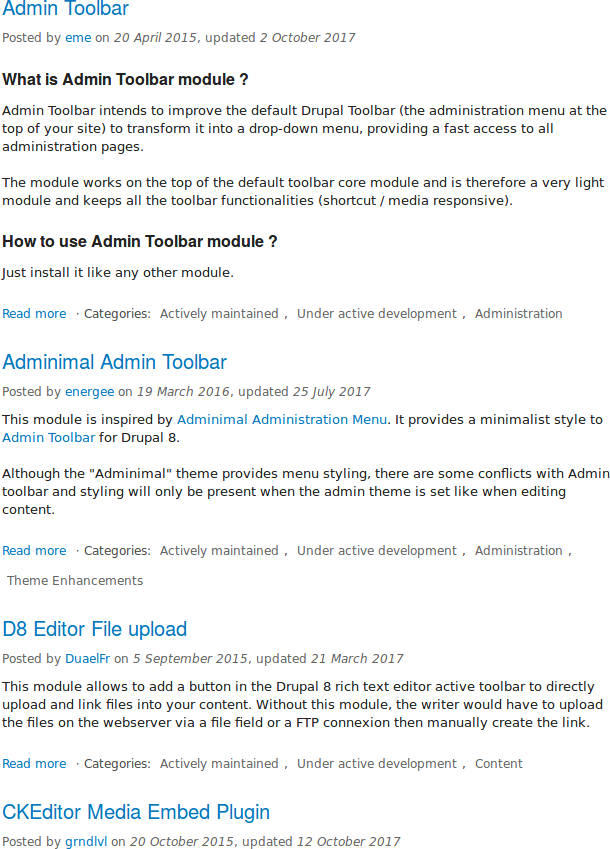
- To further evaluate a module, click its title in the list of search results to visit its project page.
Some aspects to pay attention to when evaluating modules:
- Project description: The description of the module on its project page should be clear and useful. You should get an idea of its features and requirements.
- Project information: There may be warnings in this area of the page, such as if a module is no longer being developed, or is not covered by the security advisory policy.
- Project information > Reported installs, downloads: You can see how many people have downloaded and how many sites use the module. If it’s only used by a few sites, it might be a unique solution that not many people need, or it might be a warning sign that you shouldn’t use it either.
- Maintainers: When was the last commit (the last time someone updated something on the module) or last release (new version)? If the project has few open issues, a long time since commits/releases might be appropriate, but if it has a lot of open issues and there are no commits/releases, that would be a clue that it might be abandoned.
- Issues: See if there are any open issues, potential problems with the module. Check the Statistics to see how regularly issues are responded to.
Documentation, Resources: Check if the module has documentation or a README file, that can help you install, configure, explore, and test it.

Expand your understanding
Section 11.3, “Downloading and Installing a Module from Drupal.org”