
Goal
Add a reference field so that recipes can be linked to the vendor that has submitted it.
Prerequisite knowledge
- Section 6.3, “Adding Basic Fields to a Content Type”
- Section 6.4, “Concept: Reference Fields”
- Section 6.1, “Adding a Content Type”
Site prerequisites
The Recipe and Vendor content types must exist. See Section 6.1, “Adding a Content Type”.
Steps
- In the Manage administrative menu, navigate to Structure > Content types (admin/structure/types). Then click Manage fields in the dropdown button for the Recipe content type. The Manage fields page appears.
Click Create a new field. The Add field page appears. Choose the Reference field type from the Choose a field type options. Click Continue. The Add field page appears with a form to configure the field label.
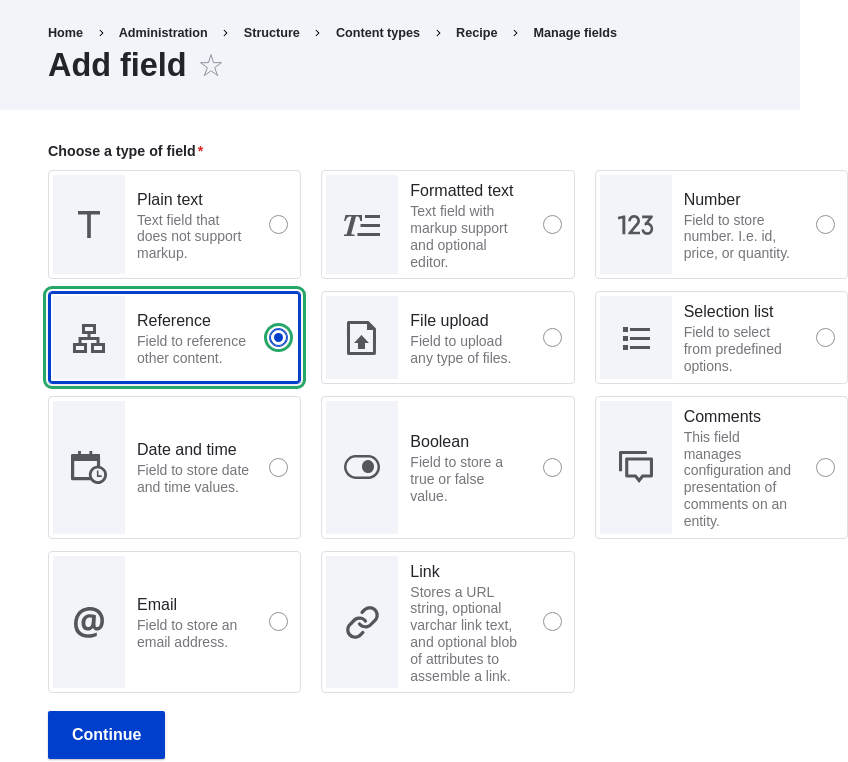
Fill in the fields as shown below. Click Save and continue.
Field name Explanation Value Label The title you want to give the field Submitted by Choose an option below: Type of content to reference Content 
The page Submitted by appears which lets you set the allowed number of values. Fill in the fields as shown below. Click Save settings.
Field name Explanation Value Type of item to reference Option to select the type of referenced entity Content Allowed number of values Specify the count of values associated with the field Limited, 1 
The page Submitted by settings for Recipe appears which allows you to configure the field. Fill in the fields as shown below. Click Save settings.
Field name Explanation Value Label Title shown for this field on the page Submitted by Help text Brief text aiding the person creating content Choose the vendor that submitted this recipe Required field Whether a value has to be provided or not Checked Reference type > Reference method Option to select reference method Default Reference type > Content type Specify the content type Vendor Reference type > Sort by Sorting field Vendor name Reference type > Sort direction Sorting order Ascending 
The Submitted by field has been added to the content type.