Menu du compte de l'utilisateur

  • Log in

Navigation principale

  • Home Page
  • All CMS
  • Tutorials
  • White Paper
Home
Guide CMS

Breadcrumb

  • Home
  • Tutorials
  • Drupal User Guide
  • Chapter 6. Setting Up Content Structure
  • 6.11. Changing Content Display

Language selector

  • Français
  • English

Main navigation

  • Home Page
  • All CMS
  • Tutorials
  • White Paper

User login

CAPTCHA
This question is for testing whether or not you are a human visitor and to prevent automated spam submissions.
  • Create new account
  • Reset your password

Book navigation

  • Tutorials
    • Drupal User Guide
      • Preface
      • Chapter 1. Understanding Drupal
      • Chapter 2. Planning Your Site
      • Chapter 3. Installation
      • Chapter 4. Basic Site Configuration
      • Chapter 5. Basic Page Management
      • Chapter 6. Setting Up Content Structure
        • 6.1. Adding a Content Type
        • 6.2. Deleting a Content Type
        • 6.3. Adding Basic Fields to a Content Type
        • 6.4. Concept: Reference Fields
        • 6.5. Concept: Taxonomy
        • 6.6. Setting Up a Taxonomy
        • 6.7. Adding a Reference Field
        • 6.8. Concept: Forms and Widgets
        • 6.9. Changing Content Entry Forms
        • 6.10. Concept: View Modes and Formatters
        • 6.11. Changing Content Display
        • 6.12. Concept: Image Styles
        • 6.13. Setting Up an Image Style
        • 6.14. Concept: Responsive Image Styles
        • 6.15. Concept: Text Formats and Editors
        • 6.16. Configuring Text Formats and Editors
      • Chapter 7. Managing User Accounts
      • Chapter 8. Blocks
      • Chapter 9. Creating Listings with Views

Guy Vigneault

6.11. Changing Content Display

By Guy Vigneault | 11:07 PM EDT, Thu March 12, 2026

Goal

Make the content items more readable, accessible, and visibly attractive by reordering the fields, hiding labels, and tuning the output of the fields.

Prerequisite knowledge

  • Section 2.3, “Concept: Content Entities and Fields”
  • Section 6.10, “Concept: View Modes and Formatters”

Site prerequisites

The Vendor content type must exist, it must have Main Image and Vendor URL fields, and your site must have at least one Vendor content item. See Section 6.1, “Adding a Content Type”, Section 6.3, “Adding Basic Fields to a Content Type”, and Section 5.2, “Creating a Content Item”.

Steps

  1. Find and view a Vendor content item you created in Section 6.3, “Adding Basic Fields to a Content Type”. Notice that there are several things that could be done to improve how the page looks:

    • The Main Image and Vendor URL fields should not have labels.
    • The order of the fields should be changed so that the image comes first.
    • The image should be smaller.
  2. To fix the first two problems, and update some additional settings, in the Manage administrative menu, navigate to Structure > Content types (admin/structure/types). Then click Manage display in the dropdown button for the Vendor content type.
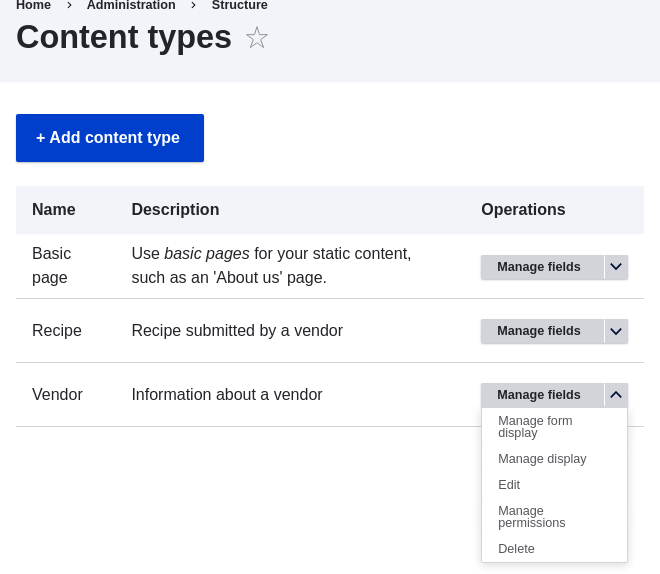
    Manage display

  3. Under the Label column, select Hidden for Main image. Do the same for Vendor URL.
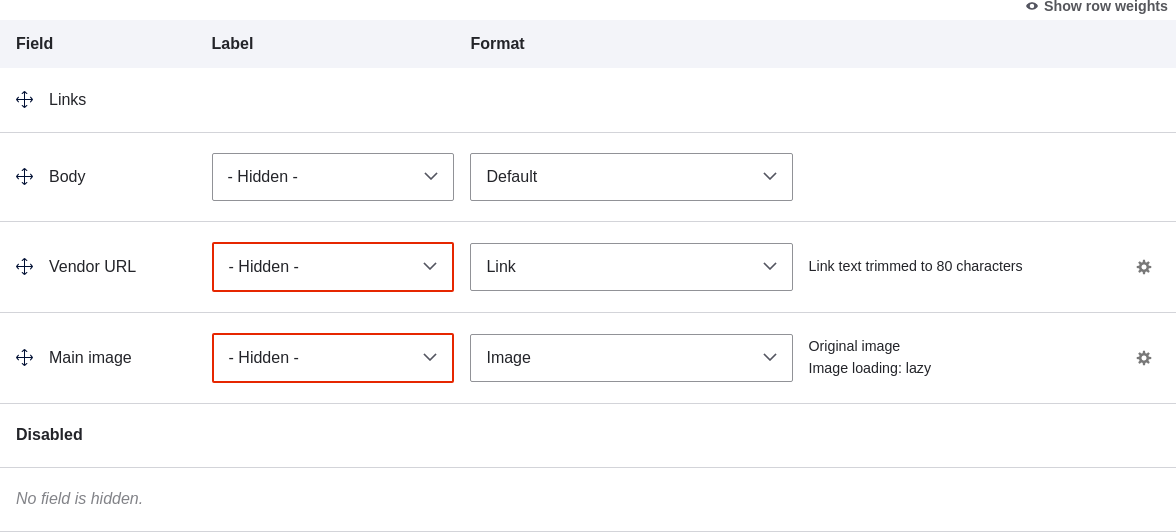
    Selecting main image title as hidden

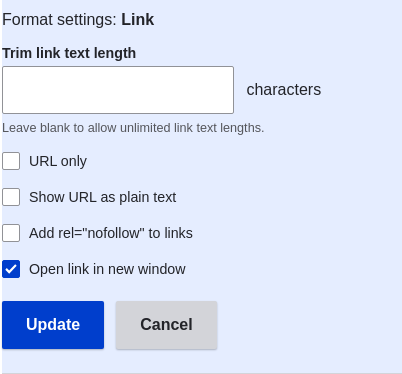
  4. Click the gear wheel for the Vendor URL field, to open the configuration options.
  5. Fill in the fields as shown below.

    Field nameExplanationExample value
    Trim link text lengthMaximum displayed length for link textBlank (no trimming)
    Open link in new windowWhether links should open in a new window or the same windowChecked

    Link trim length

  6. Click Update.
  7. Drag the cross bar handles of the fields to reorder as Main image, Body, Vendor URL, and Links. As an alternative to dragging, you can click the Show row weights link at the top of the table and enter numerical weights (fields with lower or more negative weights will be shown first).
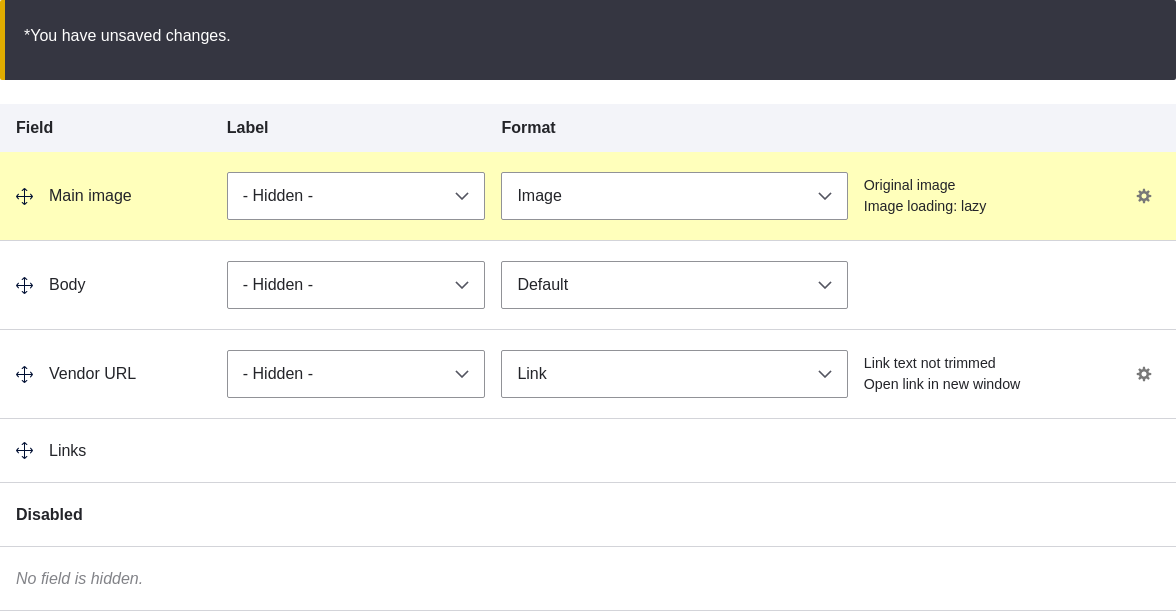
    Changing order of fields

  8. Click Save.
  9. Find the Vendor content item from step 1 again, and verify that the updates have been made.
  10. Repeat similar steps to manage the display of the Recipe content type fields.

Expand your understanding

  • Make the main image smaller. See Section 6.13, “Setting Up an Image Style”.
  • If you do not see the effect of these changes in your site, you might need to clear the cache. See Section 12.2, “Clearing the Cache”.

Related concepts

Section 6.12, “Concept: Image Styles”
Videos

Changing Content Display

Additional resources

  • Drupal.org community documentation page "Specify how fields are displayed"
  • Drupal.org community documentation page "Rearrange the order of fields"
  • Drupal.org community documentation page "View modes"

Attributions

Written by Ann Greazel and Boris Doesborg.


Book traversal links for Tutorials

  • ‹ 6.10. Concept: View Modes and Formatters
  • Up
  • 6.12. Concept: Image Styles ›
CMS


All CMS


Tuto


Tutorials


White Paper


White Paper

Powered by Drupal

Privacy Policy

Privacy Policy


Recent content

  • 9.3. Creating a Content List View
    5 days 7 hours ago
  • 9.2. Concept: The Parts of a View
    5 days 7 hours ago
  • 9.1. Concept: Uses of Views
    5 days 7 hours ago
  • Chapter 9. Creating Listings with Views
    5 days 7 hours ago
  • 8.3. Placing a Block in a Region
    1 month 2 weeks ago

Copyright

Creative Commons

Sauf mention contraire, Guide CMS © 2025 par Guy Vigneault est sous licence Creative Commons Attribution - Utilisation non commerciale - Partage dans les mêmes conditions 4.0 International


Creative Commons

Unless otherwise stated, Guide CMS © 2025 by Guy Vigneault is licensed under Creative Commons Attribution-NonCommercial-ShareAlike 4.0 International Public License

eGV Web