
Goal
Create a page listing recipes by duplicating the existing Vendors view. Modify the page so that the recipes are displayed in a grid and can be filtered by ingredients.
Prerequisite knowledge
- Section 9.1, “Concept: Uses of Views”
- Section 9.2, “Concept: The Parts of a View”
- Section 9.3, “Creating a Content List View”
Site prerequisites
- The Vendor and Recipe content types must exist; both must have Main image fields, and the Recipe content type must have an Ingredients field. Your site must also have a couple of Recipe content items. See Section 6.1, “Adding a Content Type”, Section 6.3, “Adding Basic Fields to a Content Type”, Section 6.6, “Setting Up a Taxonomy”, Section 6.9, “Changing Content Entry Forms”, and Section 5.2, “Creating a Content Item”.
- The Vendors view must exist. See Section 9.3, “Creating a Content List View”.
Steps
In the Manage administrative menu, navigate to Structure > Views (admin/structure/views). Find the view "Vendors" and click Duplicate in its dropdown button. (Note that the names of views that came with your installation profile are shown in English on this page; see Section 2.7, “Concept: User Interface, Configuration, and Content translation” for an explanation.)
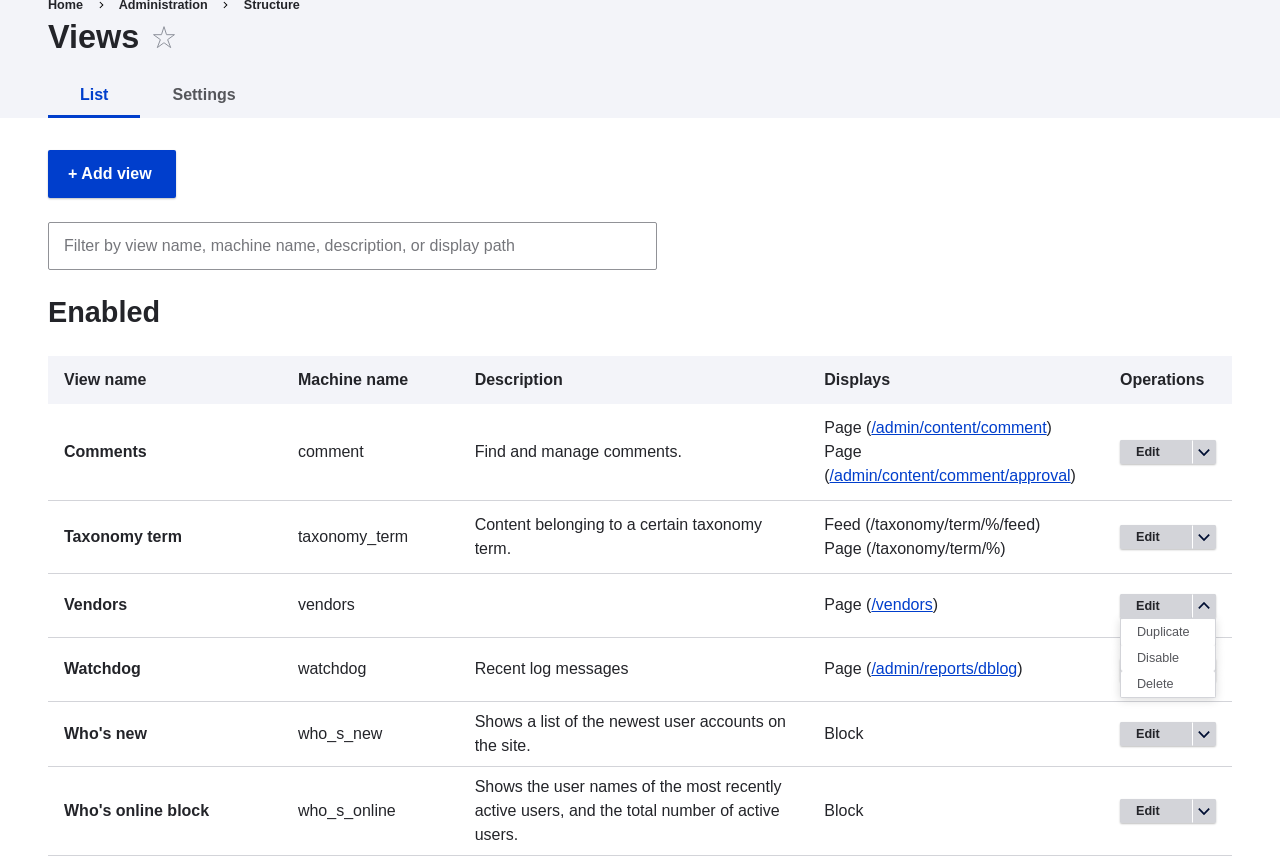
- Name the duplicate "Recipes" and click Duplicate. The view configuration page appears.
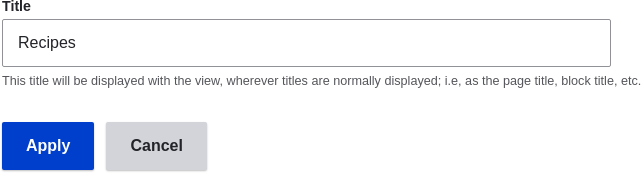
To change the title of the view page to "Recipes", click Vendors in the Title field under Title. The Page: The title of this view pop-up appears. Enter "Recipes". Click Apply.
- To change from a table to a grid format, click Table in the Format field under Format. The Page: How should this view be styled pop-up appears. Check Grid and click Apply. The Page: Style options pop-up appears. Retain the default values and click Apply.
- To retain only the title and image fields for the Recipes view, click Content: Body under Fields. Click Remove in the pop-up that appears.
- To change the content type filter to use the Recipe content type, click Content: Type (=Vendor) under Filter criteria. In the Configure filter criterion: Content: Type pop-up, check Recipe and uncheck Vendor. Click Apply.
- To add a further filter that is exposed to visitors, click Add in the dropdown button under Filter criteria. Search for "ingredients" and check "Ingredients (field_ingredients)". Click Add and configure filter criteria.
The appearing pop-up offers extra settings on vocabulary and selection type. Click Apply and continue. The next pop-up allows you to expose this filter to visitors. Fill in the fields as shown below, and click Apply.
Field name Explanation Example value Expose this filter to visitors, to allow them to change it Allow visitors to filter and search Checked Required Whether a value has to be provided or not Unchecked Label Label shown for this filter on the view page Find recipes using… 
To change the Path label field to "Recipes", click "/vendors" in the Path field under Page settings. In the pop-up that appears, enter the path "recipes" and click Apply.
Note that when editing a view, you enter paths without the leading "/", unlike on other administrative pages (such as when providing a path to a content item page).
- To change the menu link title, click "Normal: Vendors" in the Menu field under Page settings. In the pop-up that appears, change the title to "Recipes" and click Apply.
- In order to use Ajax (see Ajax entry in the Glossary) to make filtering and paging faster for users, under Advanced > Other, click No in the Use AJAX field. Check Use AJAX in the pop-up that appears, and click Apply.
- Click Save to save the view.
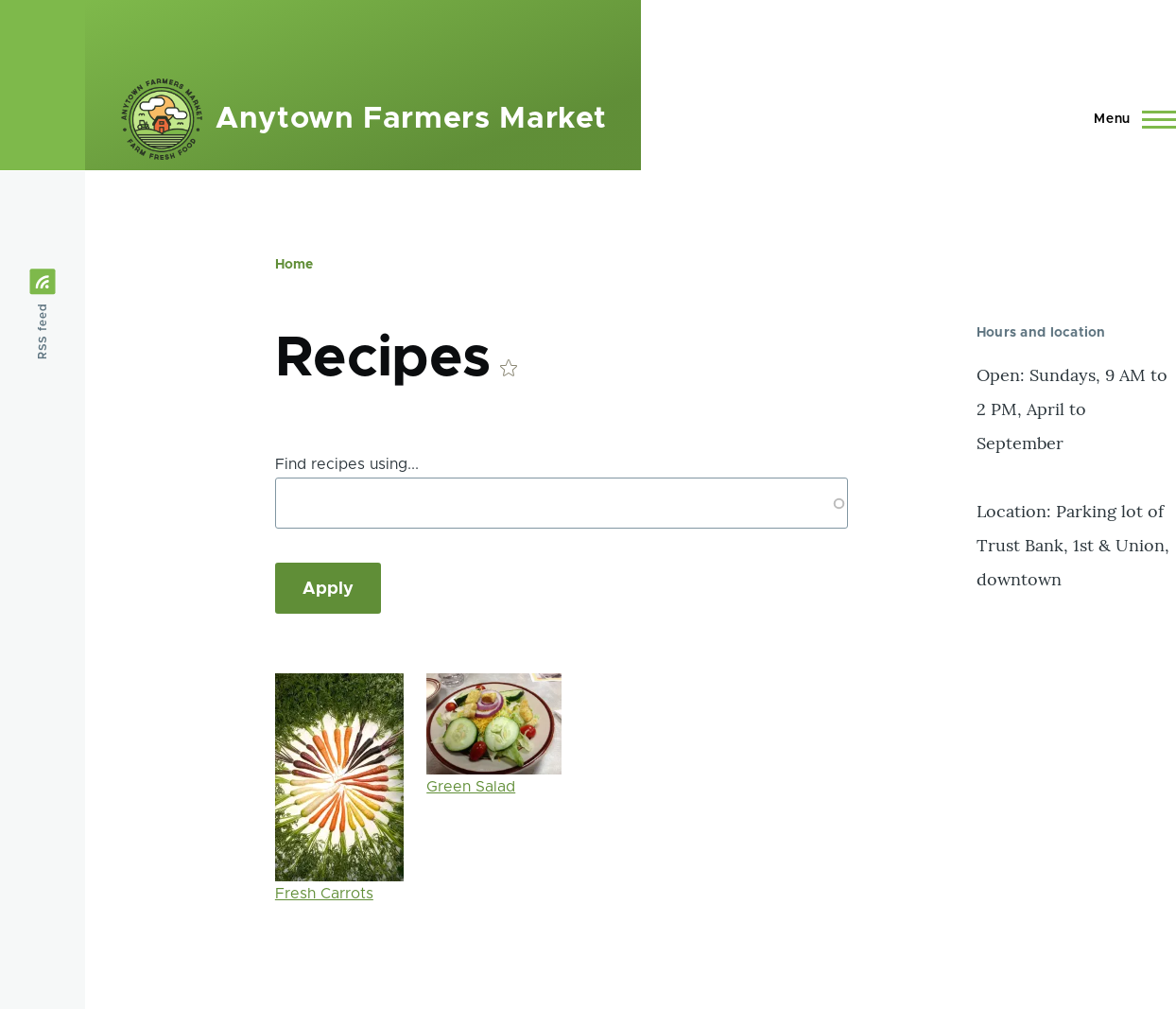
Go back to the home page and click Recipes in the navigation to view the new Recipes page.
Expand your understanding
The link to the view in the main navigation will probably not be in the right place. Change the order of the menu links in the main navigation. See Section 5.7, “Changing the Order of Navigation”.
Related concepts
- Section 2.5, “Planning your Content Structure”
- Ajax entry in the Glossary