
Menu du compte de l'utilisateur

  • Log in

Navigation principale

  • Home Page
  • All CMS
  • Tutorials
  • White Paper
Home
Guide CMS

Breadcrumb

  • Home
  • Tutorials
  • Drupal User Guide
  • Chapter 5. Basic Page Management
  • 5.4. Designating a Front Page for your Site

Language selector

  • Français
  • English

Main navigation

  • Home Page
  • All CMS
  • Tutorials
  • White Paper

User login

CAPTCHA
This question is for testing whether or not you are a human visitor and to prevent automated spam submissions.
  • Create new account
  • Reset your password

Book navigation

  • Tutorials
    • Drupal User Guide
      • Preface
      • Chapter 1. Understanding Drupal
      • Chapter 2. Planning Your Site
      • Chapter 3. Installation
      • Chapter 4. Basic Site Configuration
      • Chapter 5. Basic Page Management
        • 5.1. Concept: Paths, Aliases, and URLs
        • 5.2. Creating a Content Item
        • 5.3. Editing a Content Item
        • 5.4. Designating a Front Page for your Site
        • 5.5. Concept: Menu
        • 5.6. Adding a Page to the Navigation
        • 5.7. Changing the Order of Navigation
      • Chapter 6. Setting Up Content Structure
      • Chapter 7. Managing User Accounts
      • Chapter 8. Blocks
      • Chapter 9. Creating Listings with Views
      • Chapter 10. Making Your Site Multilingual
      • Chapter 11. Extending and Customizing Your Site

Guy Vigneault

5.4. Designating a Front Page for your Site

By Guy Vigneault | 11:45 PM EST, Sun December 14, 2025

Goal

Configure which content item is displayed as the front page of your website.

Site prerequisites

The content item that you want to designate as the front page of your site must exist. See Section 5.2, “Creating a Content Item”.

Steps

  1. In the Manage administrative menu, navigate to Configuration > System > Basic site settings (admin/config/system/site-information).
  2. Under Front page, replace /node with the name of the page you would like to make the home page. To use the home page that was previously created, provide its path /home. Click Save configuration.
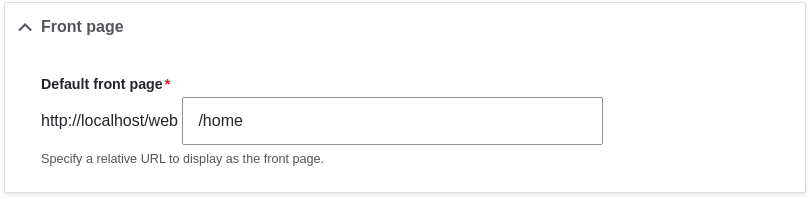
    FRONT PAGE area with /home in text field

  3. Navigate to the home page to verify that it displays content as configured by you.
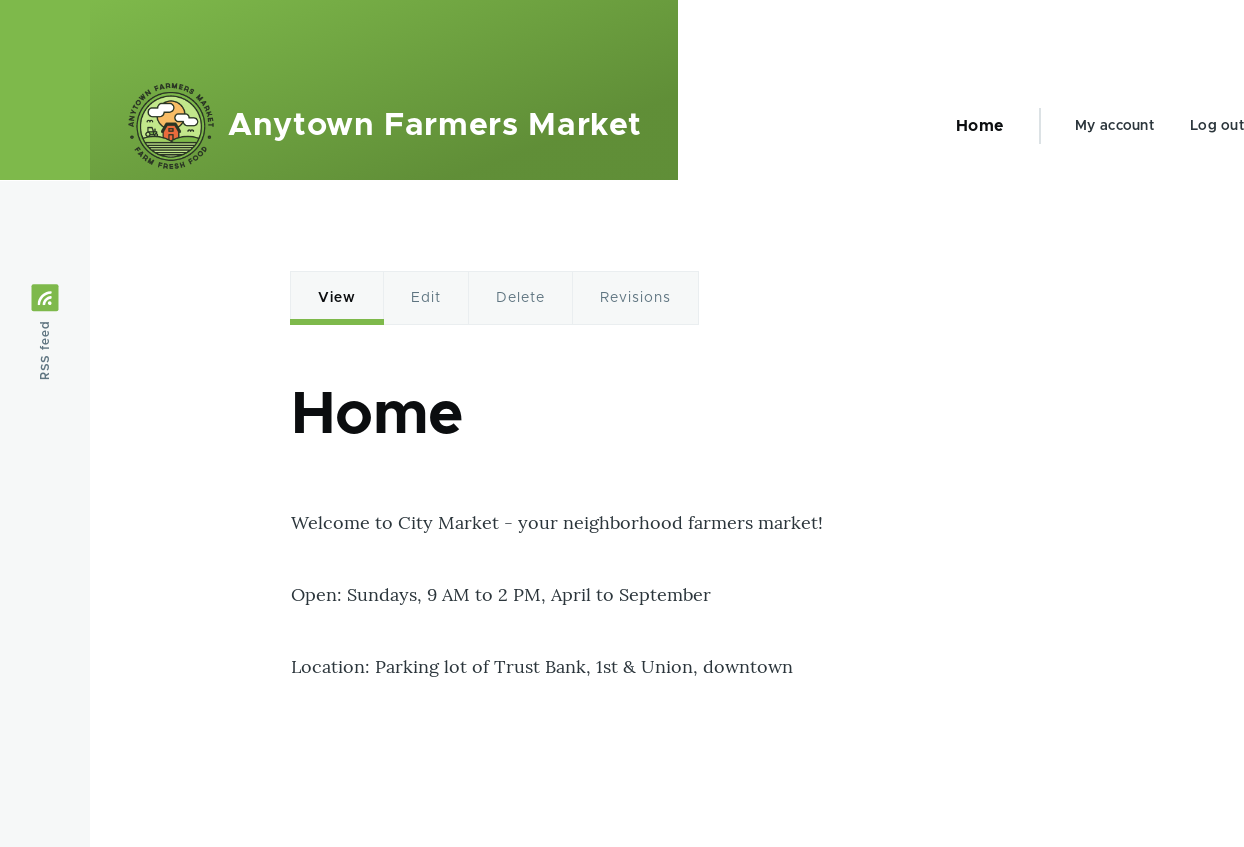
    FRONT PAGE with Home (Basic page) content added

Expand your understanding

  • Section 5.6, “Adding a Page to the Navigation”
  • Follow Section 5.2, “Creating a Content Item” to create an error page to be used as a 404 (page not found) or 403 (not authorized) response on your site. Then following the steps here, you can designate it as the error response, in the Error pages section of the configuration.

Related concepts

Section 5.5, “Concept: Menu”

Videos

Designating a Front Page for Your Site

Attributions

Written and edited by Ann Greazel, Jack Haas, and Jojy Alphonso at Red Crackle.

 

Book traversal links for Tutorials

  • ‹ 5.3. Editing a Content Item
  • Up
  • 5.5. Concept: Menu ›
CMS


All CMS


Tuto


Tutorials


White Paper


White Paper

Powered by Drupal

Privacy Policy

Privacy Policy


Recent content

  • 11.4. Finding Themes
    2 days 4 hours ago
  • 11.3. Downloading and Installing a Module from Drupal.org
    2 days 4 hours ago
  • 11.2. Enabling and Disabling Maintenance Mode
    2 days 4 hours ago
  • 11.1. Finding Modules
    2 days 4 hours ago
  • Chapter 11. Extending and Customizing Your Site
    2 days 4 hours ago

Copyright

Creative Commons

Sauf mention contraire, Guide CMS © 2025 par Guy Vigneault est sous licence Creative Commons Attribution - Utilisation non commerciale - Partage dans les mêmes conditions 4.0 International


Creative Commons

Unless otherwise stated, Guide CMS © 2025 by Guy Vigneault is licensed under Creative Commons Attribution-NonCommercial-ShareAlike 4.0 International Public License

eGV Web