
Menu du compte de l'utilisateur

  • Log in

Navigation principale

  • Home Page
  • All CMS
  • Tutorials
  • White Paper
Home
Guide CMS

Breadcrumb

  • Home
  • Tutorials
  • Drupal User Guide
  • Chapter 5. Basic Page Management
  • 5.2. Creating a Content Item

Language selector

  • Français
  • English

Main navigation

  • Home Page
  • All CMS
  • Tutorials
  • White Paper

User login

CAPTCHA
This question is for testing whether or not you are a human visitor and to prevent automated spam submissions.
  • Create new account
  • Reset your password

Book navigation

  • Tutorials
    • Drupal User Guide
      • Preface
      • Chapter 1. Understanding Drupal
      • Chapter 2. Planning Your Site
      • Chapter 3. Installation
      • Chapter 4. Basic Site Configuration
      • Chapter 5. Basic Page Management
        • 5.1. Concept: Paths, Aliases, and URLs
        • 5.2. Creating a Content Item
        • 5.3. Editing a Content Item
        • 5.4. Designating a Front Page for your Site
        • 5.5. Concept: Menu
        • 5.6. Adding a Page to the Navigation
        • 5.7. Changing the Order of Navigation
      • Chapter 6. Setting Up Content Structure
      • Chapter 7. Managing User Accounts
      • Chapter 8. Blocks
      • Chapter 9. Creating Listings with Views
      • Chapter 10. Making Your Site Multilingual
      • Chapter 11. Extending and Customizing Your Site

Guy Vigneault

5.2. Creating a Content Item

By Guy Vigneault | 12:45 AM EDT, Wed September 17, 2025

Goal

Create and publish a content item that will be used as the home page of the site.

Prerequisite knowledge

  • Section 5.1, “Concept: Paths, Aliases, and URLs”
  • Section 2.3, “Concept: Content Entities and Fields”

Site prerequisites

The Basic page content type must exist. This is created on your site when you install with the core Standard installation profile.

Steps

  1. In the Manage administrative menu, navigate to Content > Add content > Basic page (node/add/page). The Create Basic page form appears.
  2. Click Edit summary.
  3. Fill in the fields as shown below.

    Field nameExplanationValue
    TitleTitle of the page. Will also be used as a meta tag in the source code, URL alias, and as label of the content item in administration screensHome
    SummarySummary of the value of the body field. Can be used as teaser in overview pagesOpening times and location of City Market.
    BodyFull content of the page

    Welcome to City Market - your neighborhood farmers market!

    Open: Sundays, 9 AM to 2 PM, April to September

    Location: Parking lot of Trust Bank, 1st & Union, downtown

    PublishedWhether the content is published for public view or notChecked
    URL alias > URL aliasAlternate relative path for the content/home

    By clicking the Source button in the rich text editor toolbar, you can see the HTML source code of the text that you are editing.
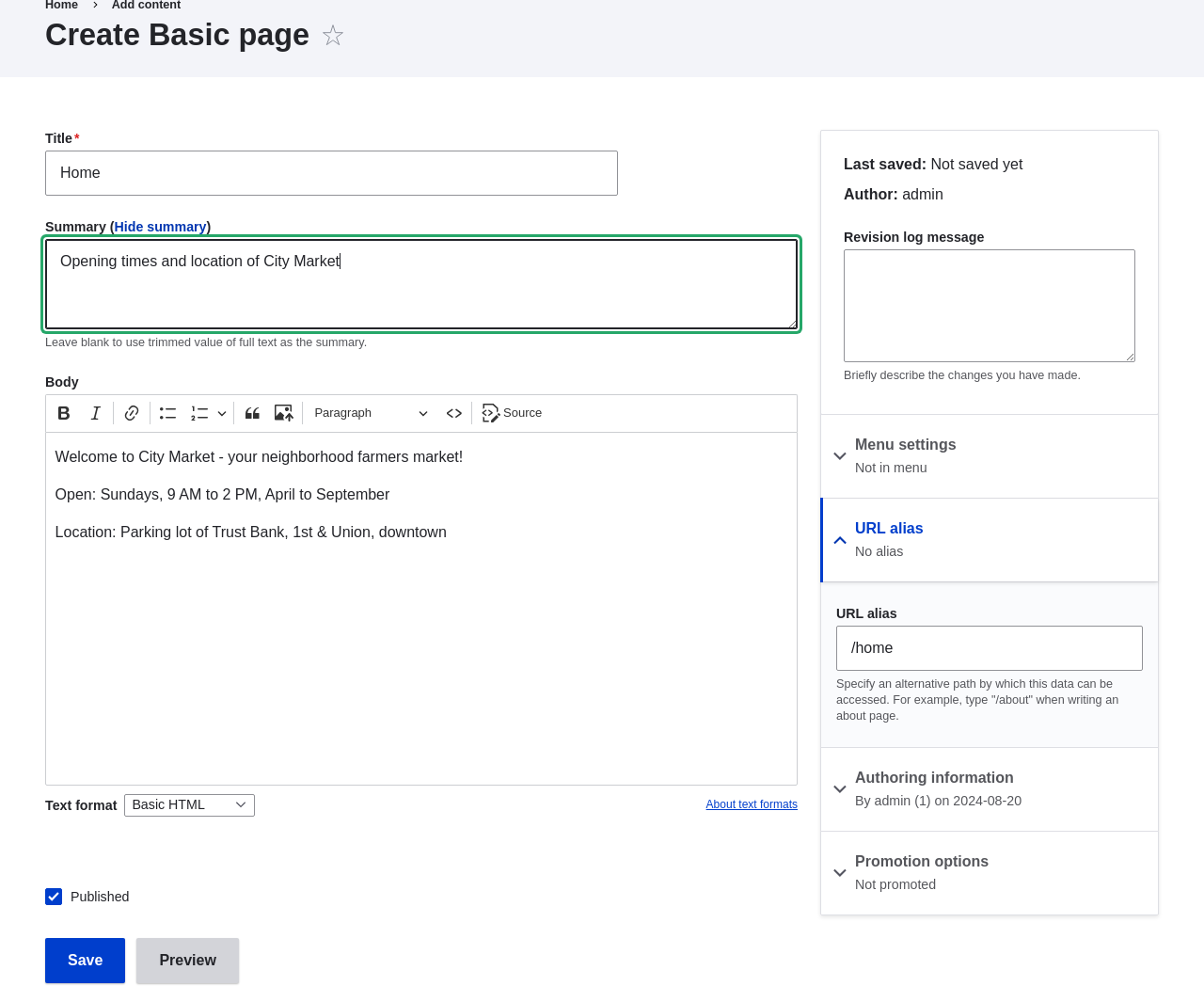
    Create a basic page

  4. Click Preview to ensure everything looks like expected.
  5. Click Back to content editing.
  6. Click Save. The content is saved and can be found on the Content page.
  7. Follow the same steps to create an About page, with title "About", and a body telling about the history of the farmer’s market.

Expand your understanding

  • Section 5.4, “Designating a Front Page for your Site”
  • Section 5.6, “Adding a Page to the Navigation”
  • Section 10.3, “Translating Content”

Related concepts

  • Section 2.7, “Concept: User Interface, Configuration, and Content translation”
  • Section 5.1, “Concept: Paths, Aliases, and URLs”
  • Section 5.3, “Editing a Content Item”

Videos

Creating a Content Item

Additional resources

Drupal.org community documentation page "About nodes"

Attributions

Written by Agnes Kiss and Boris Doesborg.

 

Book traversal links for Tutorials

  • ‹ 5.1. Concept: Paths, Aliases, and URLs
  • Up
  • 5.3. Editing a Content Item ›
CMS


All CMS


Tuto


Tutorials


White Paper


White Paper

Powered by Drupal

Privacy Policy

Privacy Policy


Recent content

  • 11.4. Finding Themes
    2 days 19 hours ago
  • 11.3. Downloading and Installing a Module from Drupal.org
    2 days 19 hours ago
  • 11.2. Enabling and Disabling Maintenance Mode
    2 days 19 hours ago
  • 11.1. Finding Modules
    2 days 19 hours ago
  • Chapter 11. Extending and Customizing Your Site
    2 days 19 hours ago

Copyright

Creative Commons

Sauf mention contraire, Guide CMS © 2025 par Guy Vigneault est sous licence Creative Commons Attribution - Utilisation non commerciale - Partage dans les mêmes conditions 4.0 International


Creative Commons

Unless otherwise stated, Guide CMS © 2025 by Guy Vigneault is licensed under Creative Commons Attribution-NonCommercial-ShareAlike 4.0 International Public License

eGV Web