Menu du compte de l'utilisateur

  • Log in

Navigation principale

  • Home Page
  • All CMS
  • Tutorials
  • White Paper
Home
Guide CMS

Breadcrumb

  • Home
  • Tutorials
  • Drupal User Guide
  • Chapter 10. Making Your Site Multilingual
  • 10.2. Configuring Content Translation

Language selector

  • Français
  • English

Main navigation

  • Home Page
  • All CMS
  • Tutorials
  • White Paper

User login

CAPTCHA
This question is for testing whether or not you are a human visitor and to prevent automated spam submissions.
  • Create new account
  • Reset your password

Book navigation

  • Tutorials
    • Drupal User Guide
      • Preface
      • Chapter 1. Understanding Drupal
      • Chapter 2. Planning Your Site
      • Chapter 3. Installation
      • Chapter 4. Basic Site Configuration
      • Chapter 5. Basic Page Management
      • Chapter 6. Setting Up Content Structure
      • Chapter 7. Managing User Accounts
      • Chapter 8. Blocks
      • Chapter 9. Creating Listings with Views
      • Chapter 10. Making Your Site Multilingual
        • 10.1. Adding a Language
        • 10.2. Configuring Content Translation
        • 10.3. Translating Content
        • 10.4. Translating Configuration
      • Chapter 11. Extending and Customizing Your Site

Guy Vigneault

10.2. Configuring Content Translation

By Guy Vigneault | 1:45 AM EDT, Tue October 13, 2026

Goal

Make Custom block, Custom menu link, and Content entity types translatable. Select specific subtypes and set which fields of these can be translated.

Prerequisite knowledge

  • Section 2.3, “Concept: Content Entities and Fields”
  • Section 2.7, “Concept: User Interface, Configuration, and Content translation”

Site prerequisites

The core Content Translation module must be installed, and your site must have at least two languages. See Section 10.1, “Adding a Language”.

Steps

  1. In the Manage administrative menu, navigate to Configuration > Regional and language > Content language and translation (admin/config/regional/content-language).
  2. Under Custom language settings, check Content, Content block and Custom menu link to make these entity types translatable.
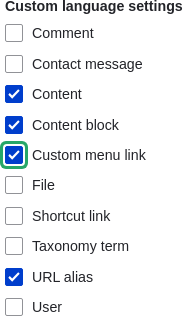
    Custom language settings checklist

  3. Configuration options appear for Content, Content block and Custom menu link. Choose the subtypes you want to translate for each entity type. Check Basic page for Content, Basic block for Content block and Custom menu link for Custom menu link.
  4. Verify the settings for the entity types as shown below:

    Field nameExplanationExample value
    Default languageThe default language for the entity subtypeSite’s default language (English)
    Show language selector on create and edit pagesWhether or not the language selector should be shown while editing and creating contentChecked

    Default language and translatability for content types

  5. Choose the fields that should be translatable for Basic page as shown in the table below. If a field is not translation-dependent, leave it unchecked.

    Field nameExplanationExample value
    TitleThe title of the contentChecked
    Authored byThe authorUnchecked
    PublishedWhether the content has been published or notChecked
    Authored onDate of publishingUnchecked
    ChangedDate of last updateUnchecked
    Promoted to front pageWhether the content will be included in some content viewsUnchecked
    Sticky at top of listsWhether the content will be displayed first in some content viewsUnchecked
    URL aliasNicer URL for the contentChecked
    BodyThe main content of the pageChecked

    Translatable content entity subtypes' fields checklist

  6. Similarly, check the appropriate boxes for translatable fields belonging to Basic block and Custom menu link.
  7. Click Save configuration.

Expand your understanding

  • Section 10.4, “Translating Configuration”
  • Section 10.3, “Translating Content”

Videos

Configuring Content Translation

Additional resources

  • Blog post "Multilingual Drupal 8 tidbits, part 5"
  • Blog post "Multilingual Drupal 8 tidbits, part 17"

Attributions

Written and edited by Laura Vass at Pronovix, Jojy Alphonso at Red Crackle, and Jennifer Hodgdon.

 

Book traversal links for Tutorials

  • ‹ 10.1. Adding a Language
  • Up
  • 10.3. Translating Content ›
CMS


All CMS


Tuto


Tutorials


White Paper


White Paper

Powered by Drupal

Privacy Policy

Privacy Policy


Recent content

  • 11.4. Finding Themes
    2 days 4 hours ago
  • 11.3. Downloading and Installing a Module from Drupal.org
    2 days 4 hours ago
  • 11.2. Enabling and Disabling Maintenance Mode
    2 days 4 hours ago
  • 11.1. Finding Modules
    2 days 4 hours ago
  • Chapter 11. Extending and Customizing Your Site
    2 days 4 hours ago

Copyright

Creative Commons

Sauf mention contraire, Guide CMS © 2025 par Guy Vigneault est sous licence Creative Commons Attribution - Utilisation non commerciale - Partage dans les mêmes conditions 4.0 International


Creative Commons

Unless otherwise stated, Guide CMS © 2025 by Guy Vigneault is licensed under Creative Commons Attribution-NonCommercial-ShareAlike 4.0 International Public License

eGV Web