Goal
Place the Opening hours and location block in the website’s sidebar.
Prerequisite knowledge
Section 8.1, “Concept: Blocks”
Site prerequisites
- The core Olivero theme must be installed and set as default. See Section 4.6, “Configuring the Theme”.
- The Opening hours and location block must exist. See Section 8.2, “Creating A Custom Block”.
Steps
- In the Manage administrative menu, navigate to Structure > Block layout (admin/structure/block). The Block layout page appears, listing the theme’s regions.
- Ensure that in the secondary tab the core Olivero theme is selected. Block placement is defined per theme.
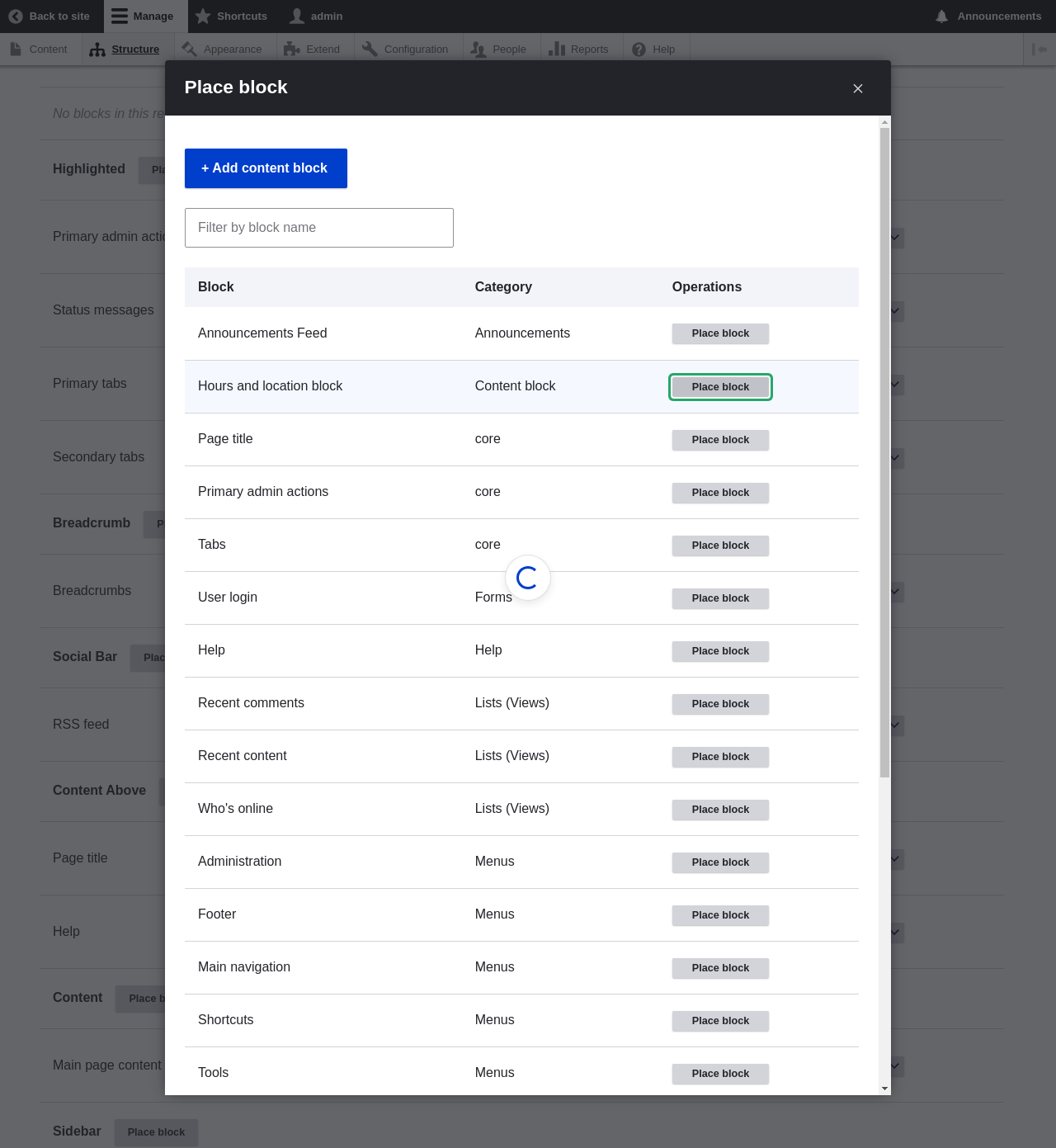
- Locate the region Sidebar in the list and click Place block next to it. The Place block window appears, listing all the blocks.
Locate the Hours and location block and click Place block next to it. The Configure block window appears. Fill in the fields as shown below.
Field name Explanation Example value Title Title to be displayed for the block Hours and location Display title Whether or not to display the title with the block Checked Region Which theme region to display it in Sidebar second You can also hide or display the block on specific pages. In the case of the Farmer’s market website you do not set any of these configuration options because you want to show the block everywhere.
- Click Save block. The Block layout page appears. You can drag the cross bar handles of blocks to change their order within each region. As an alternative to dragging, you can click the Show row weights link at the top of the table and select numerical weights (blocks with lower or more negative weights will be shown first).
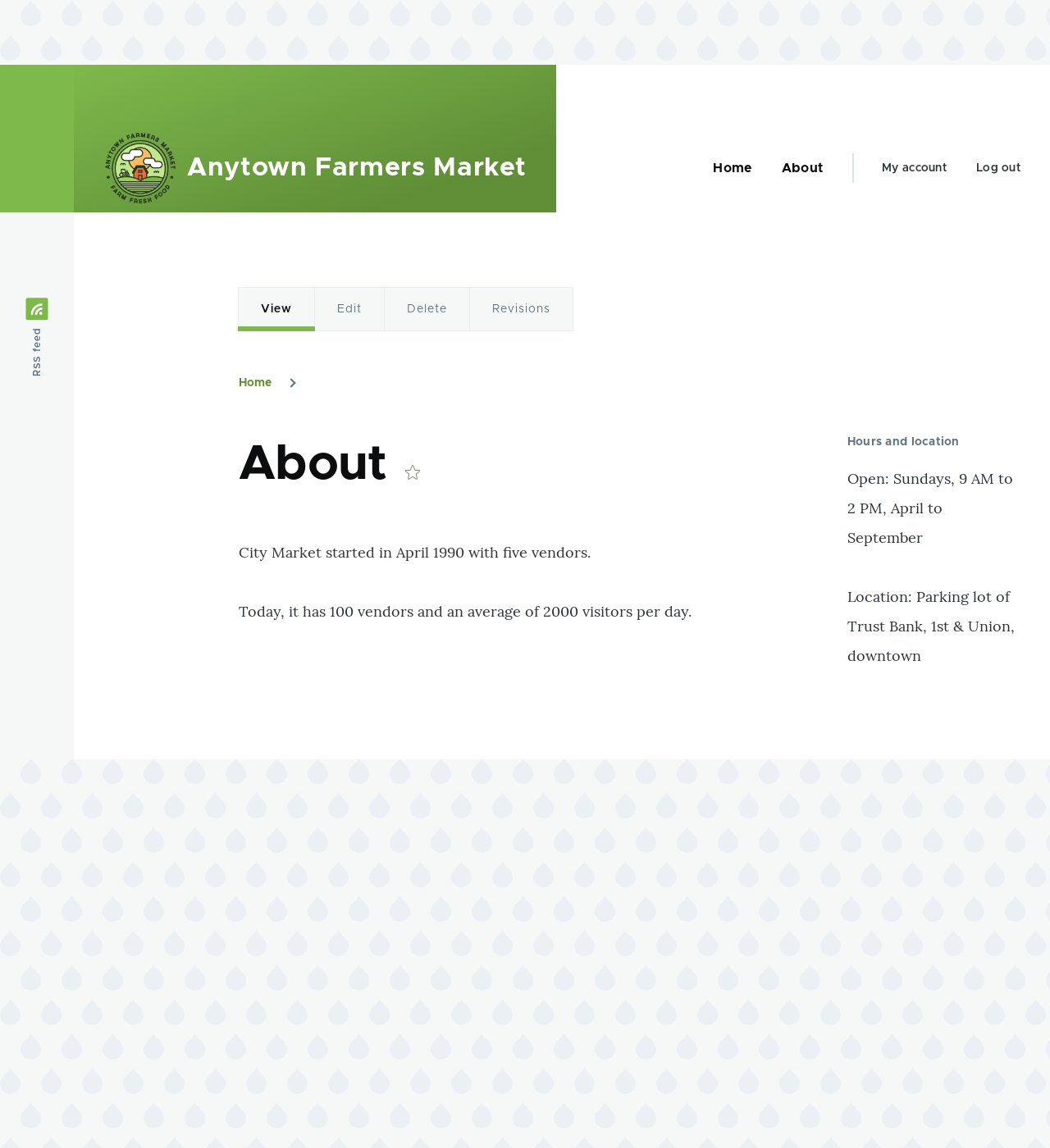
Verify that the Hours and location block is listed in the Sidebar second region, and click Save blocks.
The block has been placed on the sidebar of all pages that use the core Bartik theme.
Expand your understanding
- Remove the Powered by Drupal block from the Footer Bottom region by clicking Disable or Remove in the Operations dropdown button. Clicking Disable will let you enable the block easily later with the same configuration; if you click Remove and you want the block back, you would need to go through the steps in this topic to place it in a region again. Note that the names of the blocks that are provided by the core software, such as Powered by Drupal and User login, are shown in English on this page; see Section 2.7, “Concept: User Interface, Configuration, and Content translation” for an explanation.
- Place the User login block in a region.
- If you do not see the effect of these changes in your site, you might need to clear the cache. See Section 12.2, “Clearing the Cache”.
Videos
Attributions
Written and edited by Boris Doesborg, Jennifer Hodgdon, and Joe Shindelar at Drupalize.Me