
Menu du compte de l'utilisateur

  • Log in

Navigation principale

  • Home Page
  • All CMS
  • Tutorials
  • White Paper
Home
Guide CMS

Breadcrumb

  • Home
  • Tutorials
  • Drupal User Guide
  • Chapter 8. Blocks
  • 8.2. Creating A Custom Block

Language selector

  • Français
  • English

Main navigation

  • Home Page
  • All CMS
  • Tutorials
  • White Paper

User login

CAPTCHA
This question is for testing whether or not you are a human visitor and to prevent automated spam submissions.
  • Create new account
  • Reset your password

Book navigation

  • Tutorials
    • Drupal User Guide
      • Preface
      • Chapter 1. Understanding Drupal
      • Chapter 2. Planning Your Site
      • Chapter 3. Installation
      • Chapter 4. Basic Site Configuration
      • Chapter 5. Basic Page Management
      • Chapter 6. Setting Up Content Structure
      • Chapter 7. Managing User Accounts
      • Chapter 8. Blocks
        • 8.1. Concept: Blocks
        • 8.2. Creating A Custom Block
        • 8.3. Placing a Block in a Region
      • Chapter 9. Creating Listings with Views

Guy Vigneault

8.2. Creating A Custom Block

By Guy Vigneault | 12:23 AM EDT, Mon August 10, 2026

Goal

Create a block showing the hours and location of the farmers market.

Prerequisite knowledge

  • Section 8.1, “Concept: Blocks”
  • Section 2.1, “Concept: Regions in a Theme”

Steps

  1. In the Manage administrative menu, navigate to Content_ > Blocks (admin/content/block).
  2. Click Add content block. The Add content block page appears.
  3. Fill in the fields as shown below.

    Field nameExplanationExample value
    Block descriptionName of the block shown to administratorsHours and location block
    BodyContent of the block when it is displayedOpen: Sundays, 9 AM to 2 PM, April to September<br />Location: Parking lot of Trust Bank, 1st & Union, downtown Anytown.
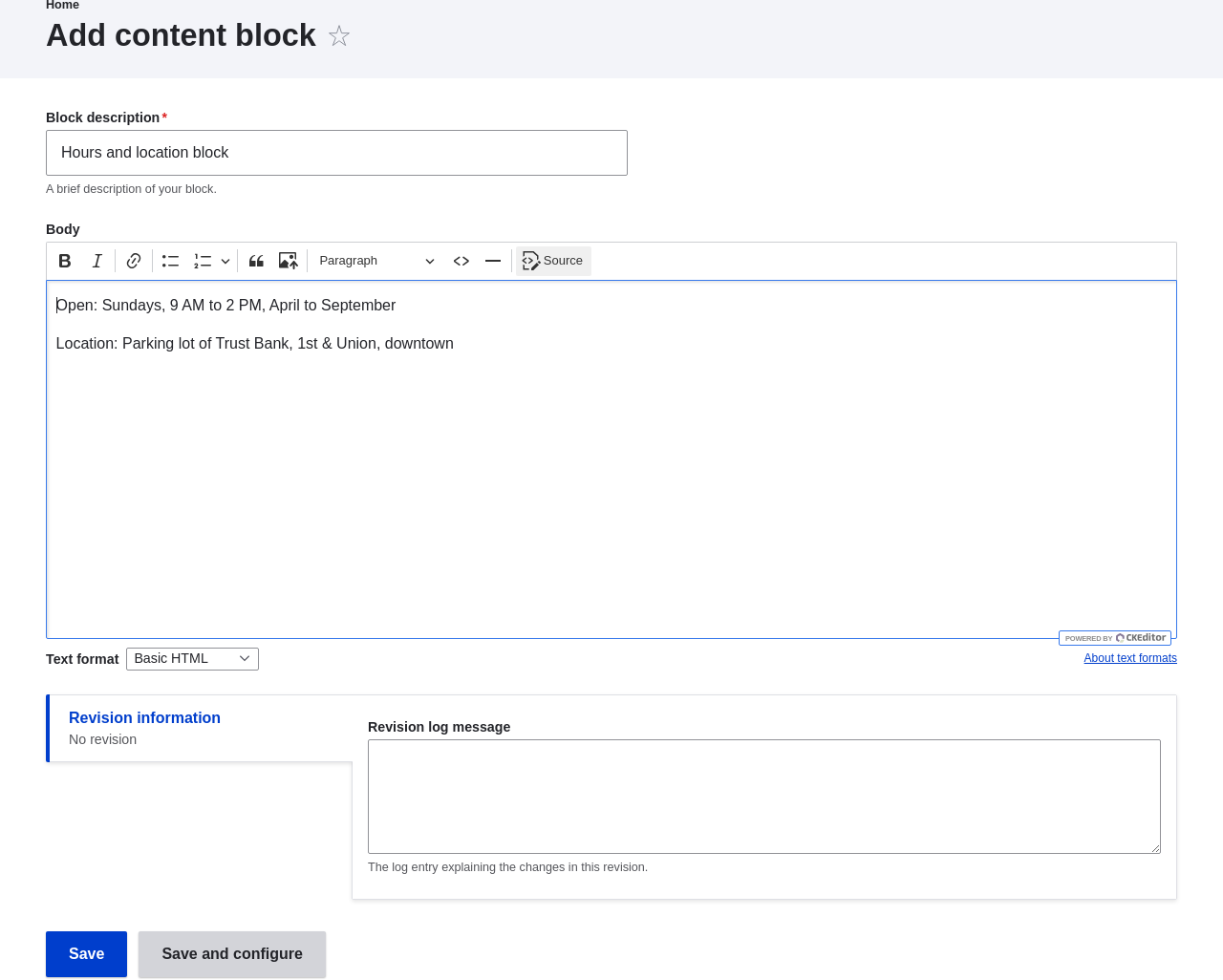
    Add a content block

  4. Click Save. A message appears indicating the block has been saved.

Expand your understanding

  • Edit the content of your custom block. In the Manage administrative menu, navigate to Content > Blocks (admin/content/block). Find your block in the list and click Edit to make changes.
  • Place the block you created in the sidebar. See Section 8.3, “Placing a Block in a Region” for details.

Videos

Creating a Custom Block

Additional resources

Drupal.org community documentation page "Managing blocks"

Attributions

Adapted by Jacob Redding and Boris Doesborg from Managing blocks, copyright 2000-2025 by the individual contributors to the Drupal Community Documentation.


 

Book traversal links for Tutorials

  • ‹ 8.1. Concept: Blocks
  • Up
  • 8.3. Placing a Block in a Region ›
CMS


All CMS


Tuto


Tutorials


White Paper


White Paper

Powered by Drupal

Privacy Policy

Privacy Policy


Recent content

  • 9.3. Creating a Content List View
    2 hours 54 minutes ago
  • 9.2. Concept: The Parts of a View
    3 hours 1 minute ago
  • 9.1. Concept: Uses of Views
    3 hours 6 minutes ago
  • Chapter 9. Creating Listings with Views
    3 hours 10 minutes ago
  • 8.3. Placing a Block in a Region
    1 month 1 week ago

Copyright

Creative Commons

Sauf mention contraire, Guide CMS © 2025 par Guy Vigneault est sous licence Creative Commons Attribution - Utilisation non commerciale - Partage dans les mêmes conditions 4.0 International


Creative Commons

Unless otherwise stated, Guide CMS © 2025 by Guy Vigneault is licensed under Creative Commons Attribution-NonCommercial-ShareAlike 4.0 International Public License

eGV Web