Goal
Make Custom block, Custom menu link, and Content entity types translatable. Select specific subtypes and set which fields of these can be translated.
Prerequisite knowledge
- Section 2.3, “Concept: Content Entities and Fields”
- Section 2.7, “Concept: User Interface, Configuration, and Content translation”
Site prerequisites
The core Content Translation module must be installed, and your site must have at least two languages. See Section 10.1, “Adding a Language”.
Steps
- In the Manage administrative menu, navigate to Configuration > Regional and language > Content language and translation (admin/config/regional/content-language).
Under Custom language settings, check Content, Content block and Custom menu link to make these entity types translatable.
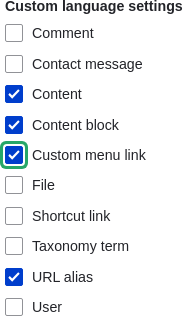
- Configuration options appear for Content, Content block and Custom menu link. Choose the subtypes you want to translate for each entity type. Check Basic page for Content, Basic block for Content block and Custom menu link for Custom menu link.
Verify the settings for the entity types as shown below:
Field name Explanation Example value Default language The default language for the entity subtype Site’s default language (English) Show language selector on create and edit pages Whether or not the language selector should be shown while editing and creating content Checked 
Choose the fields that should be translatable for Basic page as shown in the table below. If a field is not translation-dependent, leave it unchecked.
Field name Explanation Example value Title The title of the content Checked Authored by The author Unchecked Published Whether the content has been published or not Checked Authored on Date of publishing Unchecked Changed Date of last update Unchecked Promoted to front page Whether the content will be included in some content views Unchecked Sticky at top of lists Whether the content will be displayed first in some content views Unchecked URL alias Nicer URL for the content Checked Body The main content of the page Checked 
- Similarly, check the appropriate boxes for translatable fields belonging to Basic block and Custom menu link.
- Click Save configuration.
Expand your understanding
- Section 10.4, “Translating Configuration”
- Section 10.3, “Translating Content”
Additional resources
Attributions
Written and edited by Laura Vass at Pronovix, Jojy Alphonso at Red Crackle, and Jennifer Hodgdon.