Menu du compte de l'utilisateur

  • Log in

Navigation principale

  • Home Page
  • All CMS
  • Tutorials
  • White Paper
Home
Guide CMS

Breadcrumb

  • Home
  • Tutorials
  • Drupal User Guide
  • Chapter 7. Managing User Accounts
  • 7.4. Creating a User Account

Language selector

  • Français
  • English

Main navigation

  • Home Page
  • All CMS
  • Tutorials
  • White Paper

User login

CAPTCHA
This question is for testing whether or not you are a human visitor and to prevent automated spam submissions.
  • Create new account
  • Reset your password

Book navigation

  • Tutorials
    • Drupal User Guide
      • Preface
      • Chapter 1. Understanding Drupal
      • Chapter 2. Planning Your Site
      • Chapter 3. Installation
      • Chapter 4. Basic Site Configuration
      • Chapter 5. Basic Page Management
      • Chapter 6. Setting Up Content Structure
      • Chapter 7. Managing User Accounts
        • 7.1. Concept: Users, Roles, and Permissions
        • 7.2. Concept: The User 1 Account
        • 7.3. Creating a Role
        • 7.4. Creating a User Account
        • 7.5. Assigning Permissions to a Role
        • 7.6. Changing a User’s Roles
        • 7.7. Assigning Authors to Content
      • Chapter 8. Blocks
      • Chapter 9. Creating Listings with Views

Guy Vigneault

7.4. Creating a User Account

By Guy Vigneault | 11:45 PM EDT, Sun August 09, 2026

Goal

Create Vendor user accounts for Sweet Honey and Happy Farm vendors.

Prerequisite knowledge

  • Section 7.1, “Concept: Users, Roles, and Permissions”
  • Section 7.2, “Concept: The User 1 Account”
  • Section 7.3, “Creating a Role”

Site prerequisites

The Vendor role must exist on your site. See Section 7.3, “Creating a Role”.

Steps

  1. In the Manage administrative menu, navigate to People (admin/people).
  2. Click Add user.

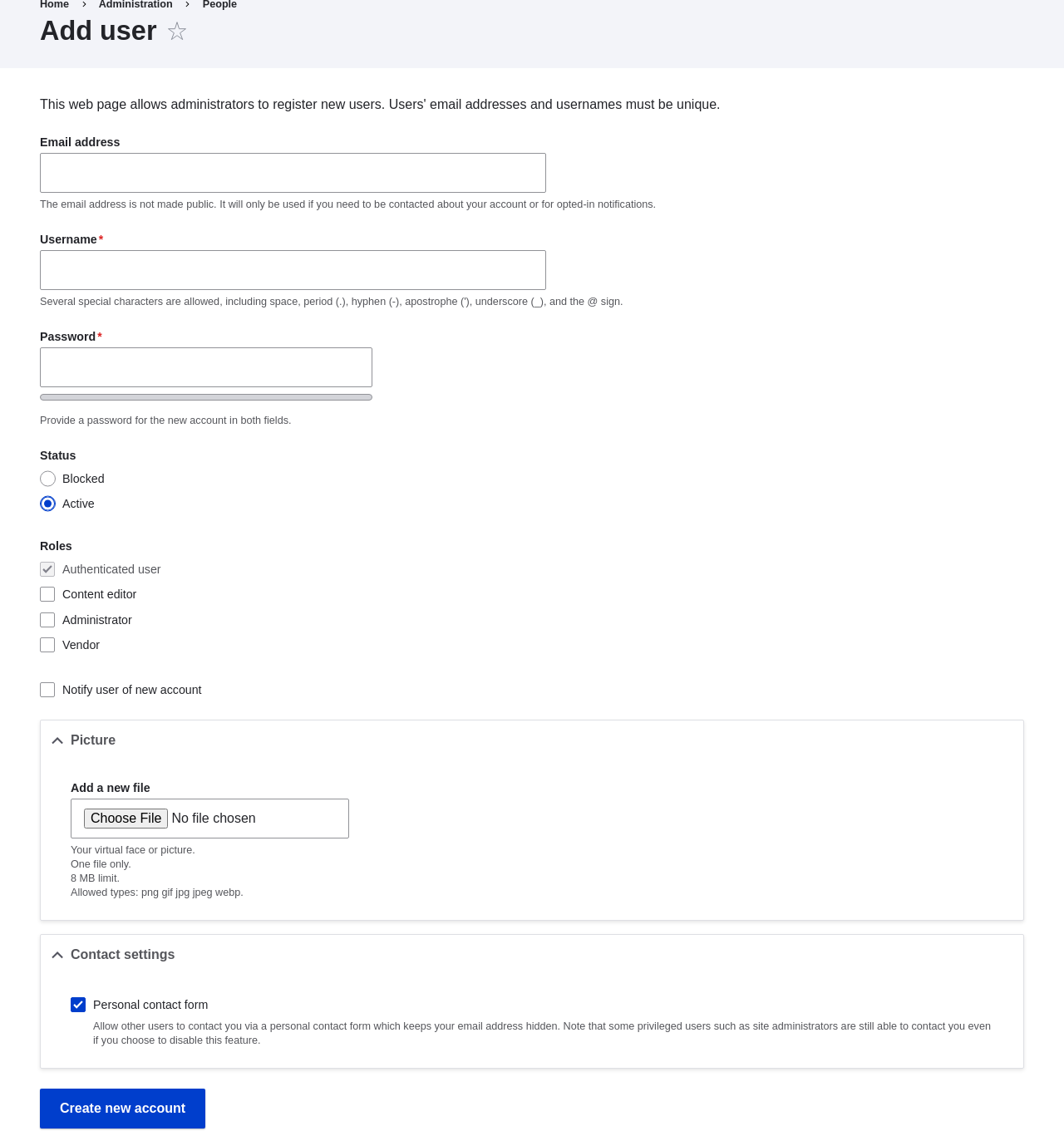
    Form for creating a new user account

  3. Fill in the form fields. See the table below.

    Field nameExplanationExample value
    Email addressA valid email address for the vendor. All emails from the system will be sent to this address. The email address is not made public.[email protected]
    UsernameA username for the vendor that they will use to sign in or author content items. Spaces are allowed; punctuation is not allowed except for periods, hyphens, apostrophes, and underscores.Sweet Honey
    PasswordA password the vendor will use to sign in to the site. You can see how safe the password is on the Password strength gauge. You also get tips on how to make it safer.(Make a secure password)
    Confirm passwordType the same password to avoid any typing mistakes.(Repeat password)
    StatusSet the status of the user account. Blocked users will not be able to sign in.Active
    RolesSet the role of the user account.Vendor
    Notify user of new accountWhether or not to send a notification to the vendor’s email address.Checked
    PictureClick Browse and select a picture to upload. Pay attention to size restrictions.Photo of the vendor
    Contact settingsEnable or disable the display of a contact form for the account.Checked
  4. Click Create new account. You will get a notification about the user account creation.

    New user account has been created

  5. Create a second Vendor account for Happy Farm by following the steps above.

Expand your understanding

Create a user account for yourself.
 

Attributions

Written by Diána Lakatos at Pronovix.


Book traversal links for Tutorials

  • ‹ 7.3. Creating a Role
  • Up
  • 7.5. Assigning Permissions to a Role ›
CMS


All CMS


Tuto


Tutorials


White Paper


White Paper

Powered by Drupal

Privacy Policy

Privacy Policy


Recent content

  • 9.3. Creating a Content List View
    19 hours 41 minutes ago
  • 9.2. Concept: The Parts of a View
    19 hours 48 minutes ago
  • 9.1. Concept: Uses of Views
    19 hours 53 minutes ago
  • Chapter 9. Creating Listings with Views
    19 hours 57 minutes ago
  • 8.3. Placing a Block in a Region
    1 month 1 week ago

Copyright

Creative Commons

Sauf mention contraire, Guide CMS © 2025 par Guy Vigneault est sous licence Creative Commons Attribution - Utilisation non commerciale - Partage dans les mêmes conditions 4.0 International


Creative Commons

Unless otherwise stated, Guide CMS © 2025 by Guy Vigneault is licensed under Creative Commons Attribution-NonCommercial-ShareAlike 4.0 International Public License

eGV Web